
Using Form Properties
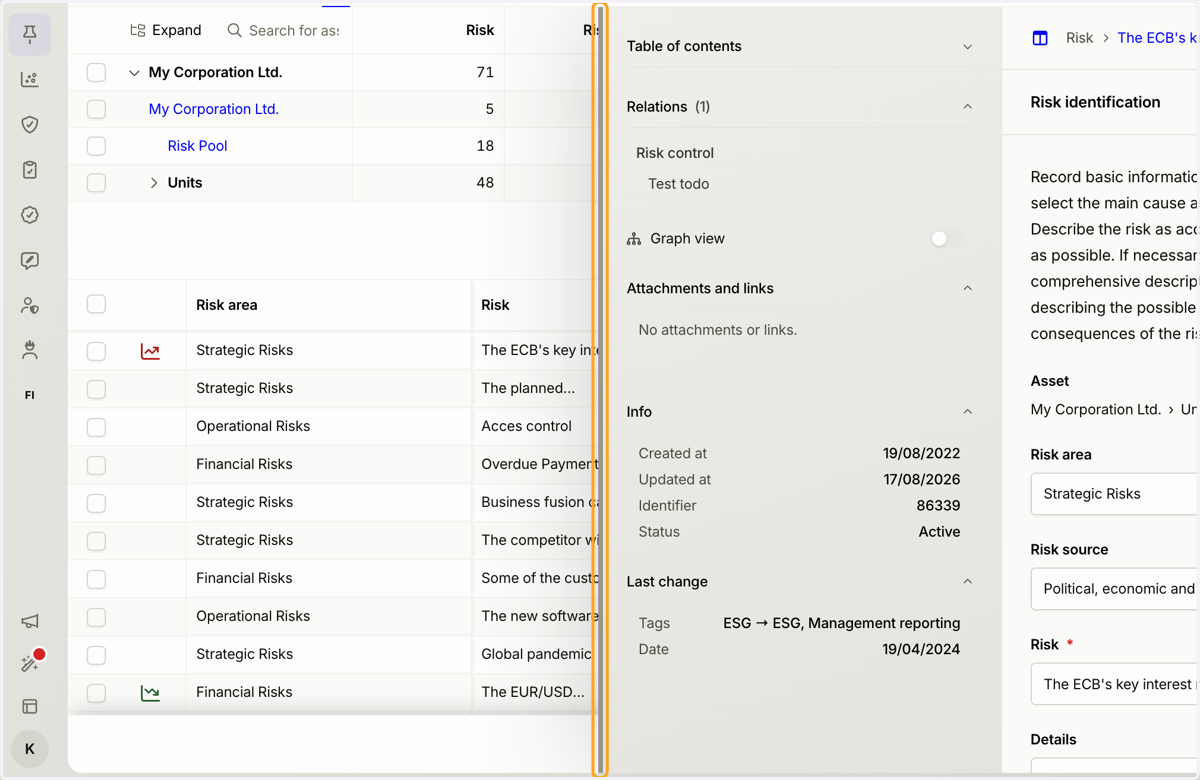
1. You can adjust the width of the form by dragging its sidebar.
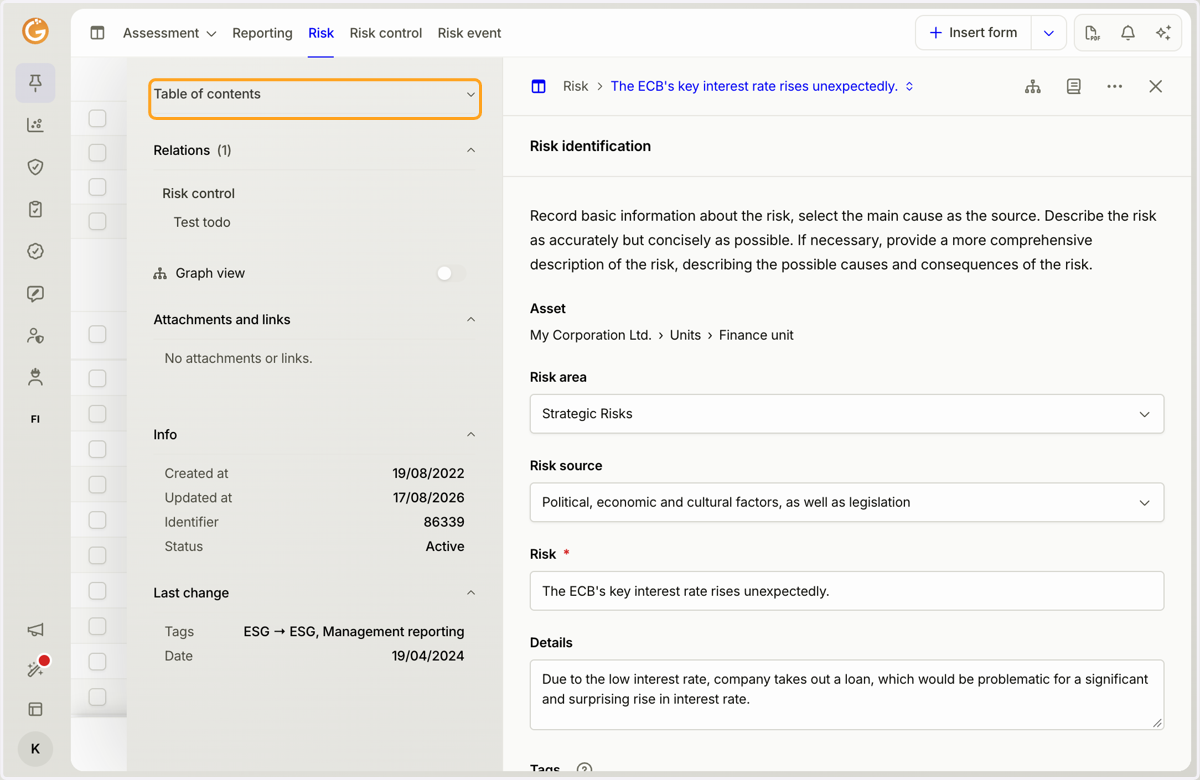
2. Use the "Table of Contents" menu to navigate directly to a specific section of the form.
This feature is particularly useful for forms with a large number of sections.
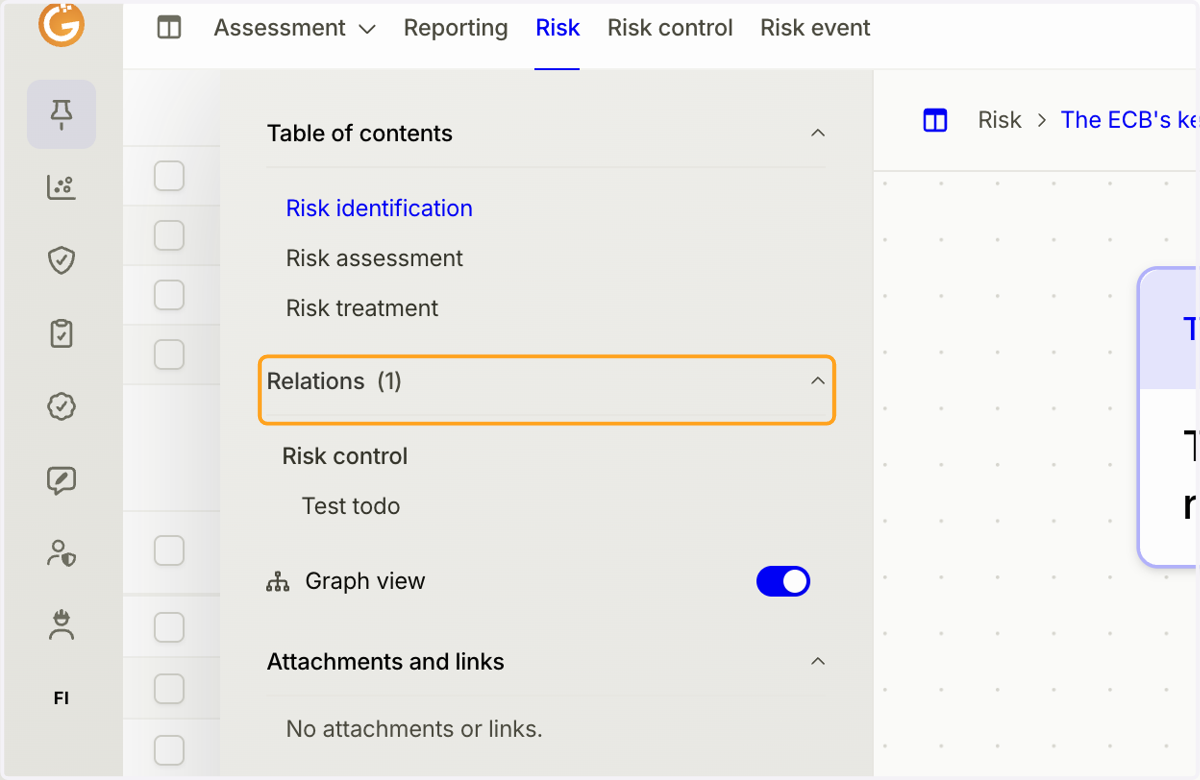
3. The "Relations" section displays all forms linked to the current form. Click any linked form to open it.
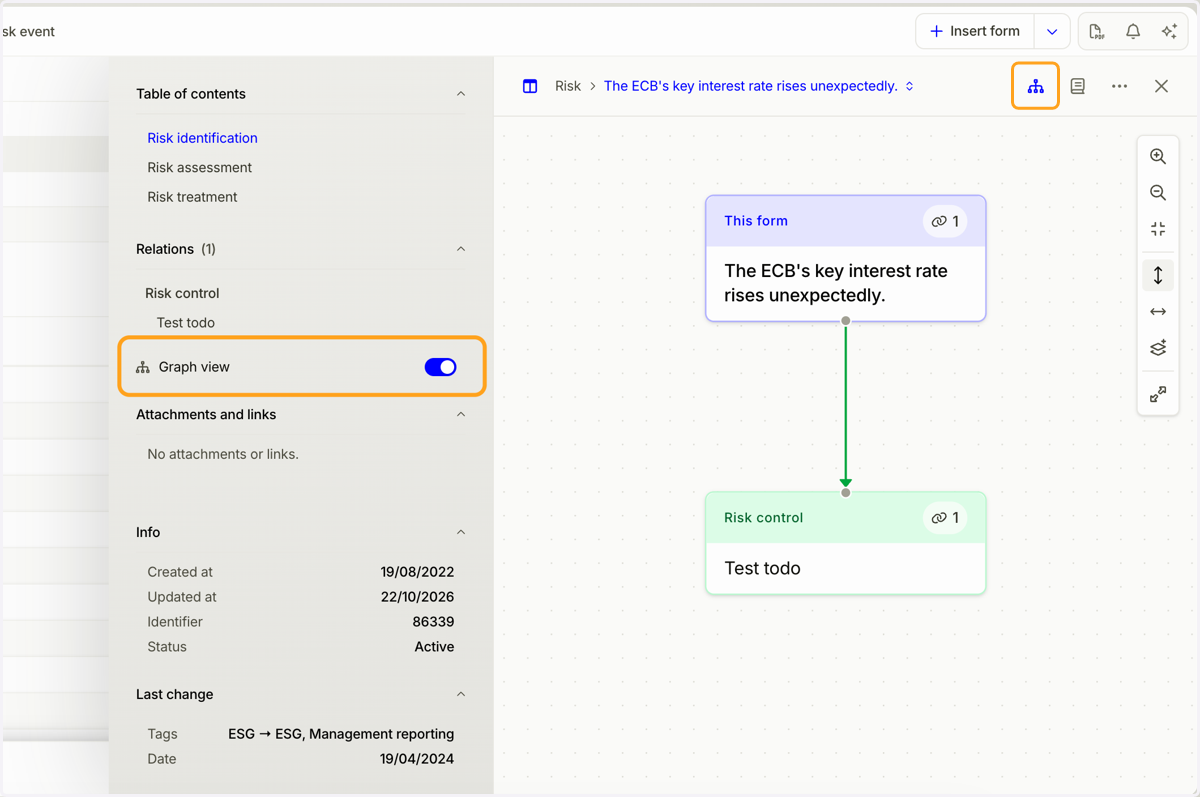
4. Enable "Graph View" in the sidebar to visualize how the form is connected to other forms. You can also access this view using the icon in the top-right corner.
You can control the graph using the icons in the right sidebar. You can also rearrange the elements in the graph by dragging them with your mouse.
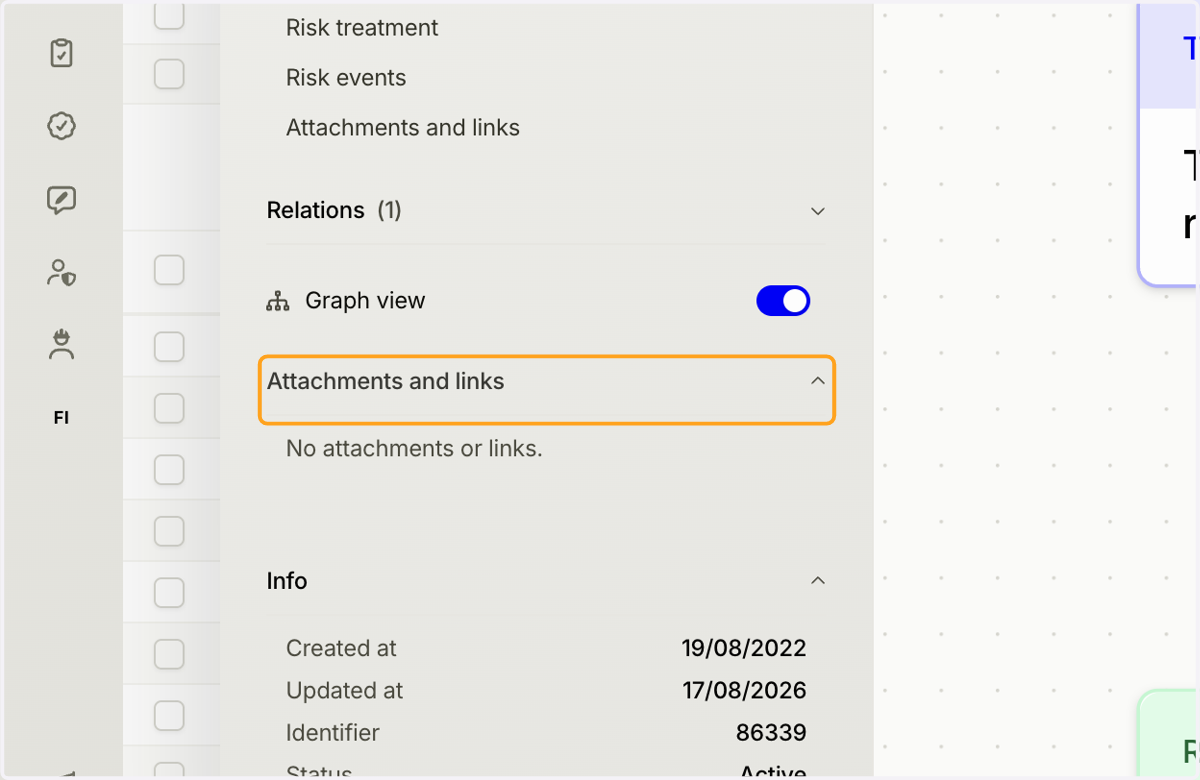
5. The "Attachments and Links" section displays all files and links attached to the form.
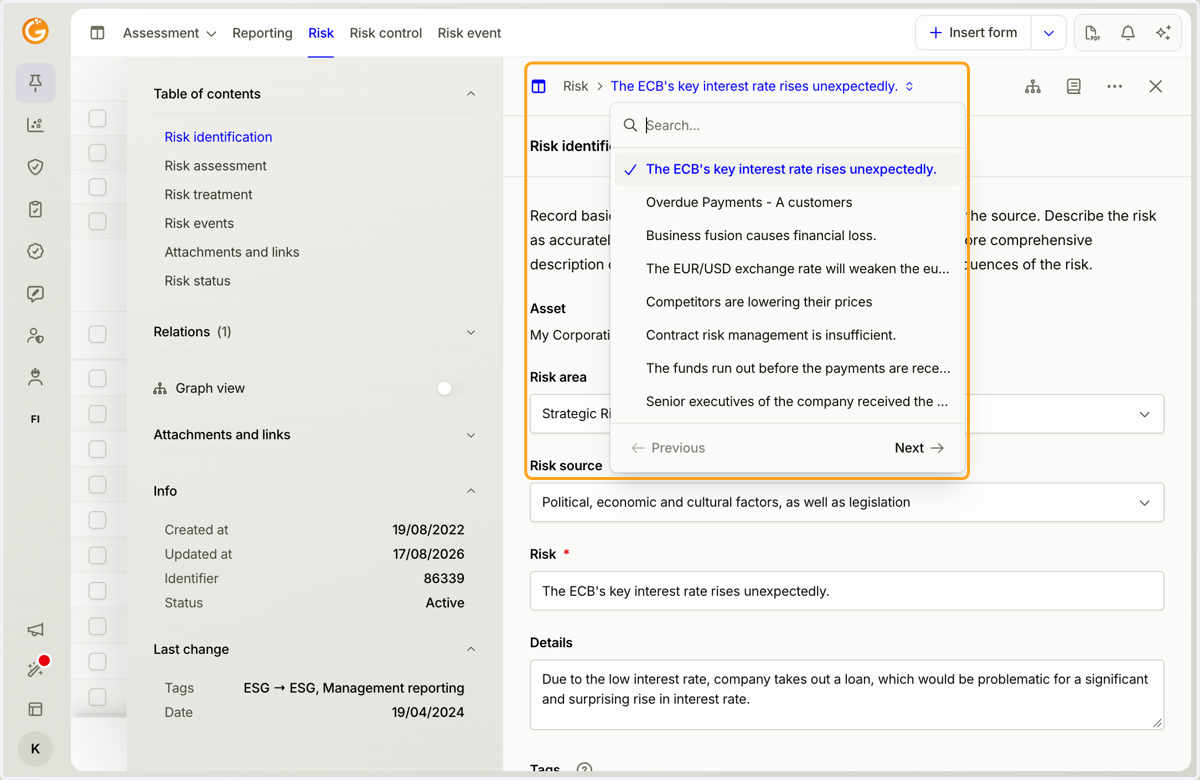
6. You can switch between forms using the menu at the top without closing the currently open form.
If you reduce the width of the open form, you can also open other forms by clicking them in the form list visible behind it.
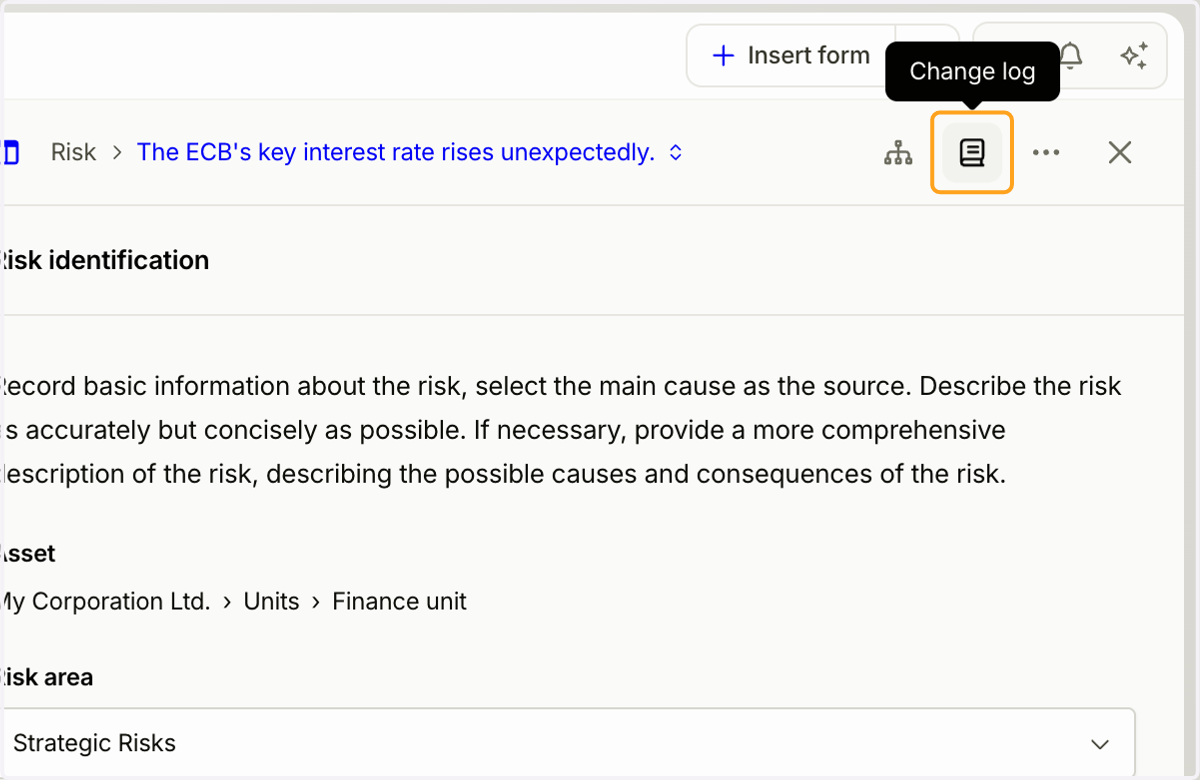
7. Click the "Change Log" icon at the top to view all changes made to the form.
The change log displays the name of the user who made each change, the timestamp, and a description of the change.
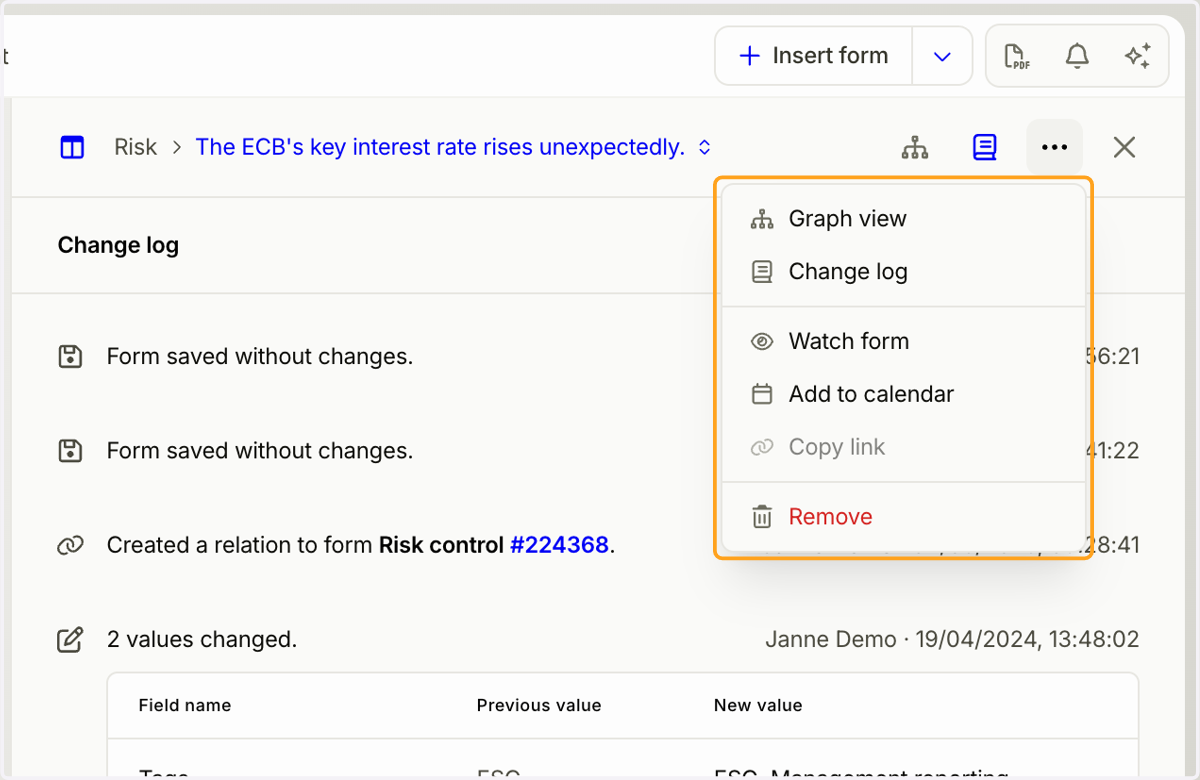
8. Click the three-dot menu (...) to access additional actions.
Watch Form: Receive email notifications whenever another user makes changes to the form.
Add to Calendar: Download a calendar event file. This feature is particularly useful for task-related forms that include a specific task and due date.
Copy Link: Copy the unique URL of the form.
9. The "Save" button appears when you make changes to the form.
All changes must be saved manually.
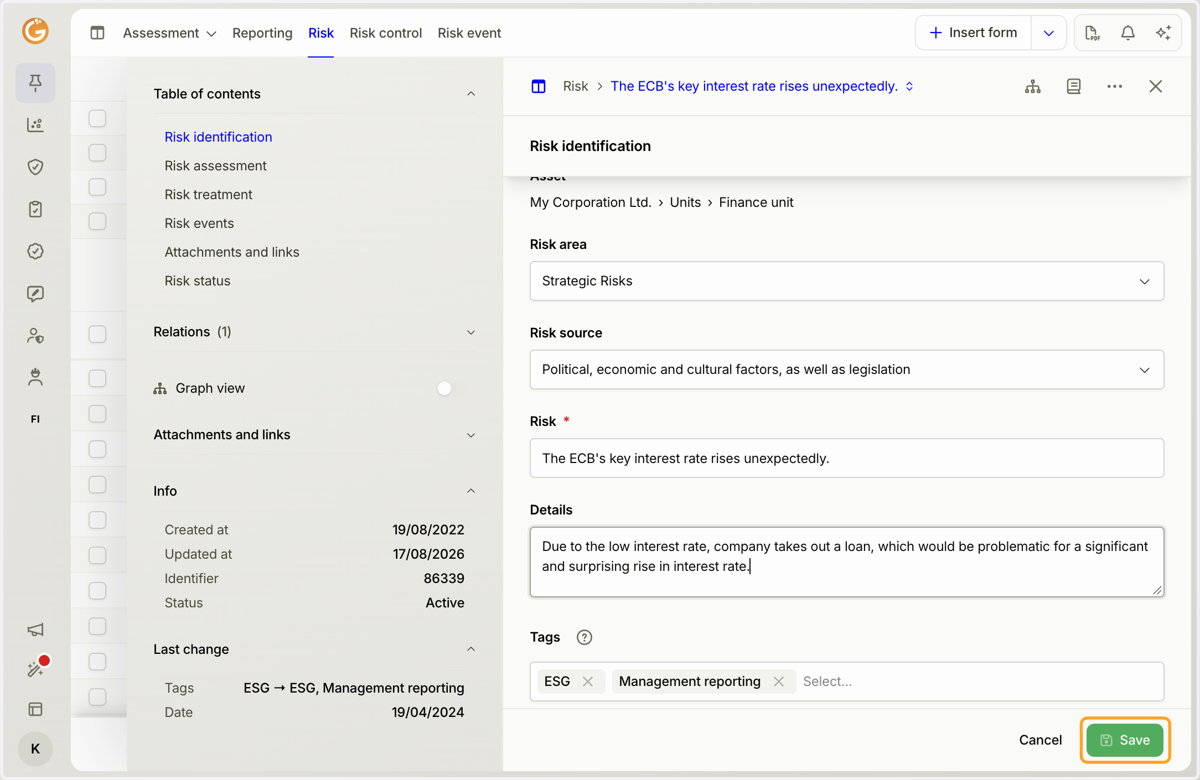
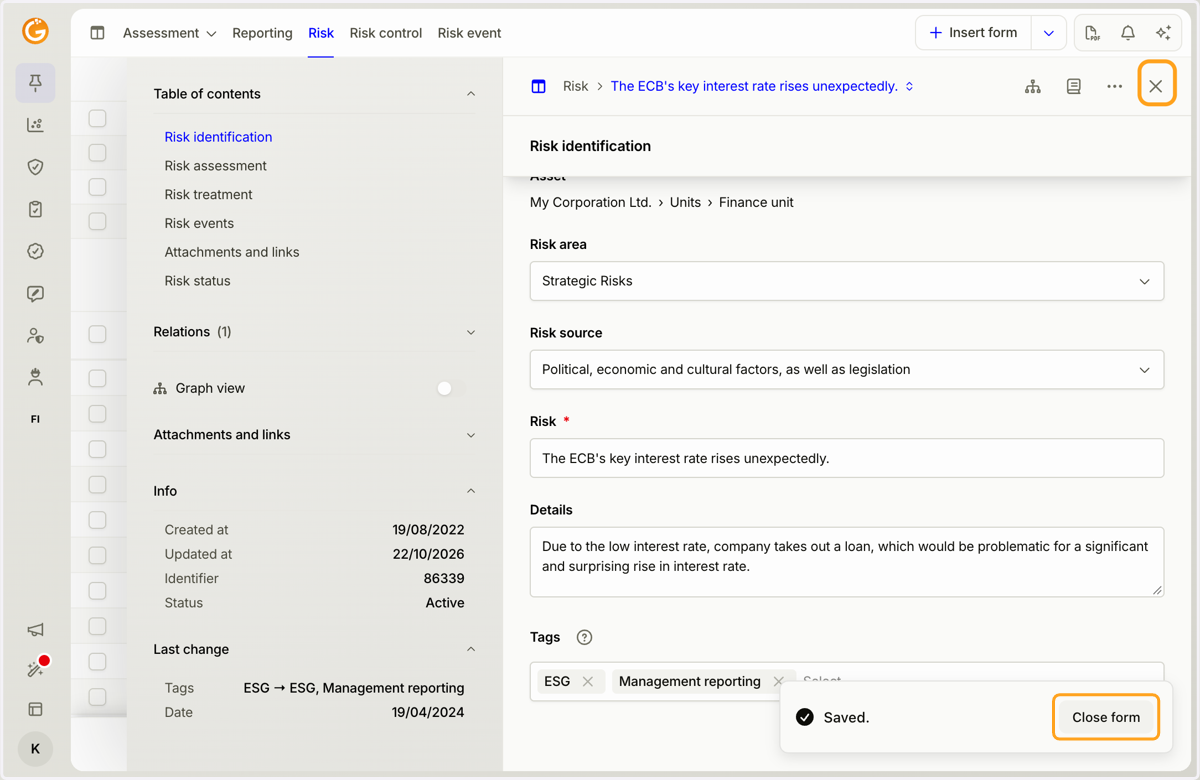
10. Once the form has been saved, you can close it using the pop-up window or the X icon in the top-right corner.
Updated on: 22/10/2026
Thank you!