
Filtering and Sorting Forms
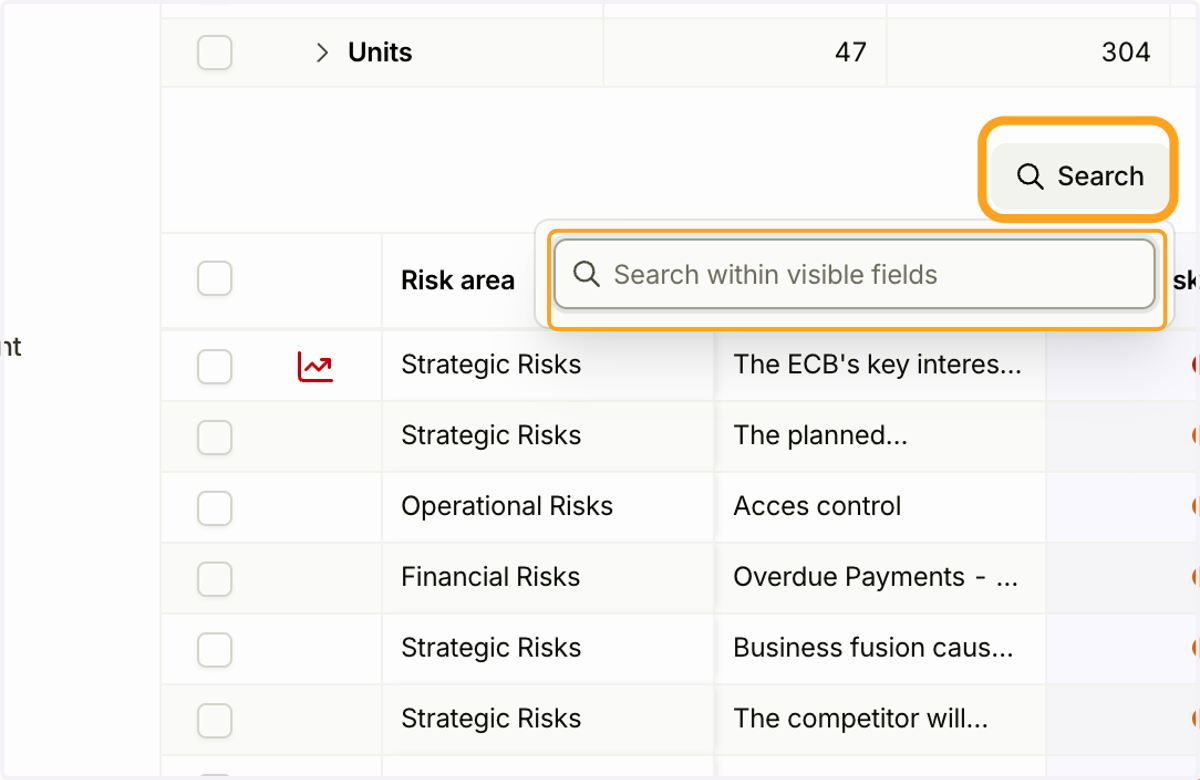
1. Click the "Search" button to search for any information in forms, including text, numbers, dates, and dropdown values.
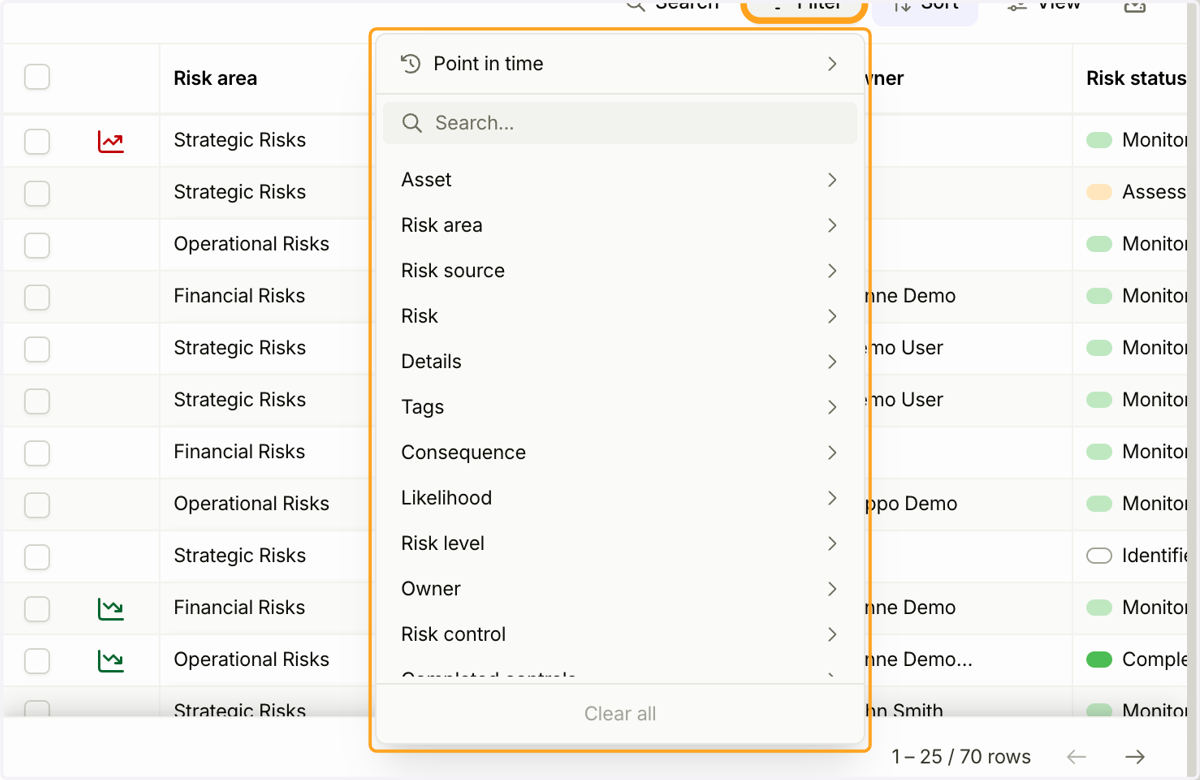
2. Click the "Filter" button to filter forms based on any form field. You can also apply multiple filters at the same time.
The "Point in time" option allows you to view historical data and see what the information looked like at a specific point in time.
The "Filter" menu displays filtering options for all fields in the form.
You can remove filters individually or clear all filters at once using the "Clear all" button at the bottom of the "Filter" menu.
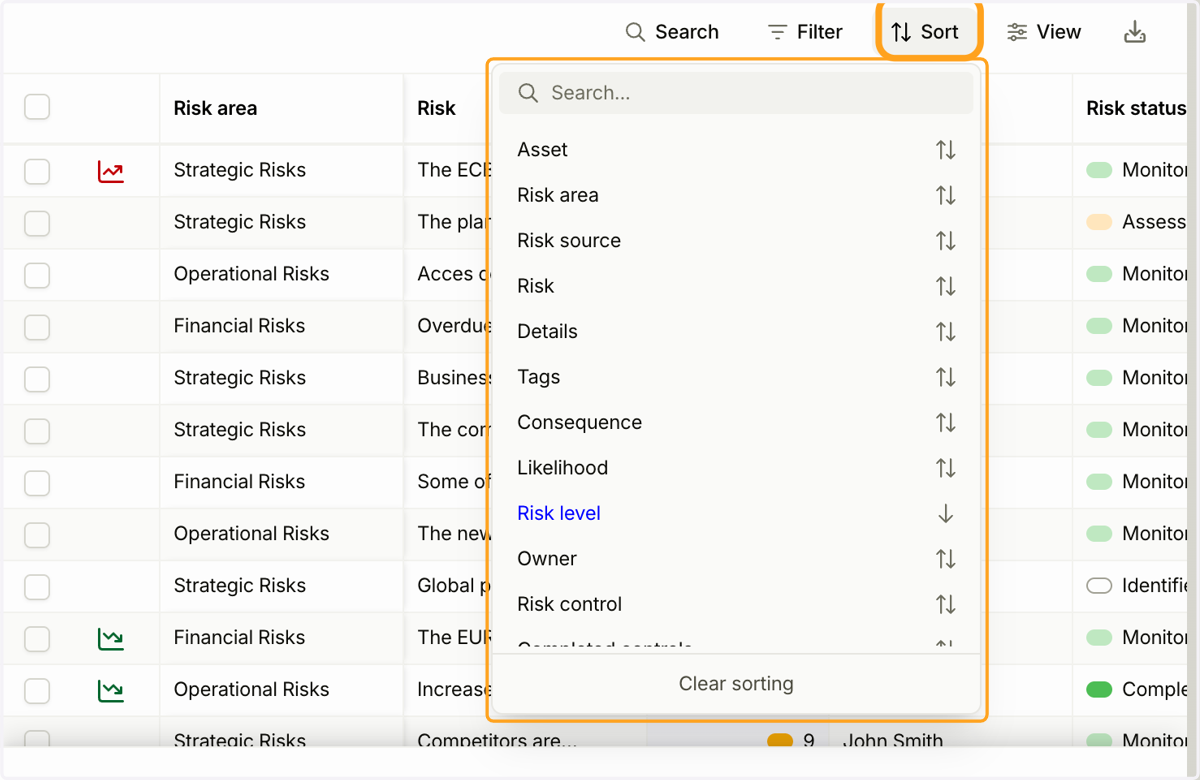
3. Click the "Sort" button to arrange the rows in the form list in ascending or descending order.
4. Use the "View" menu to choose which columns are displayed in the form list.
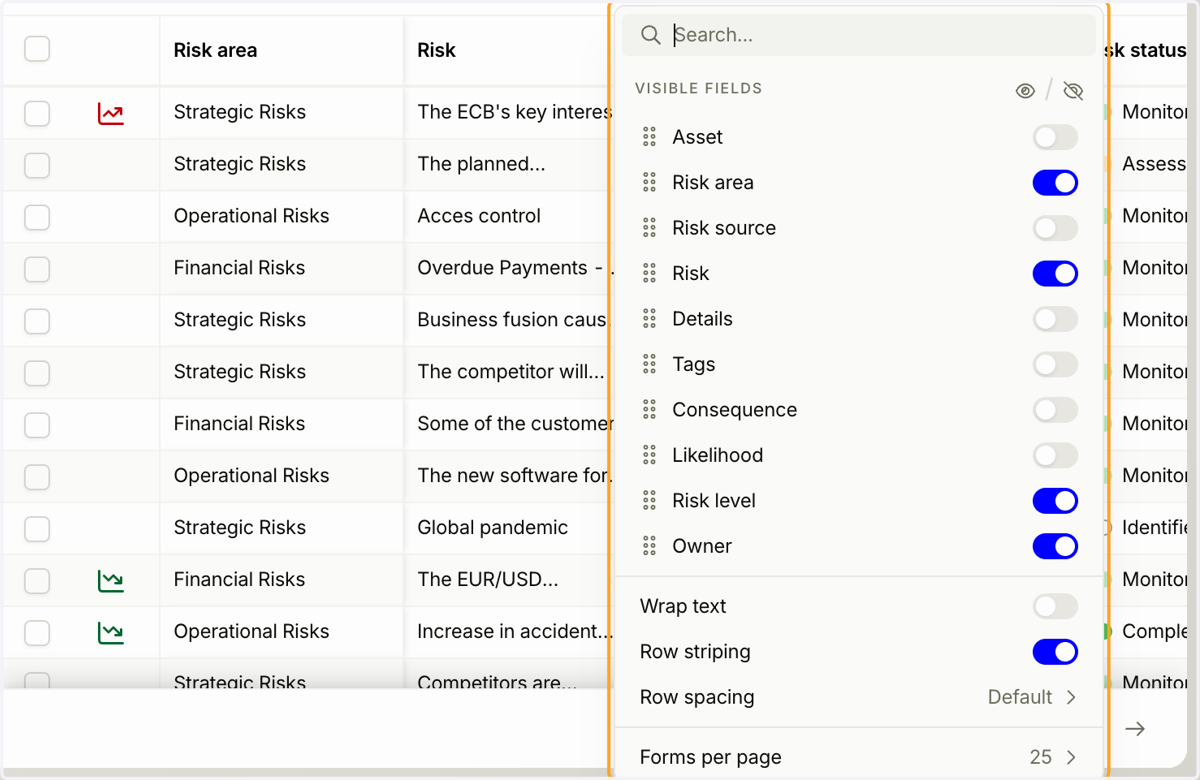
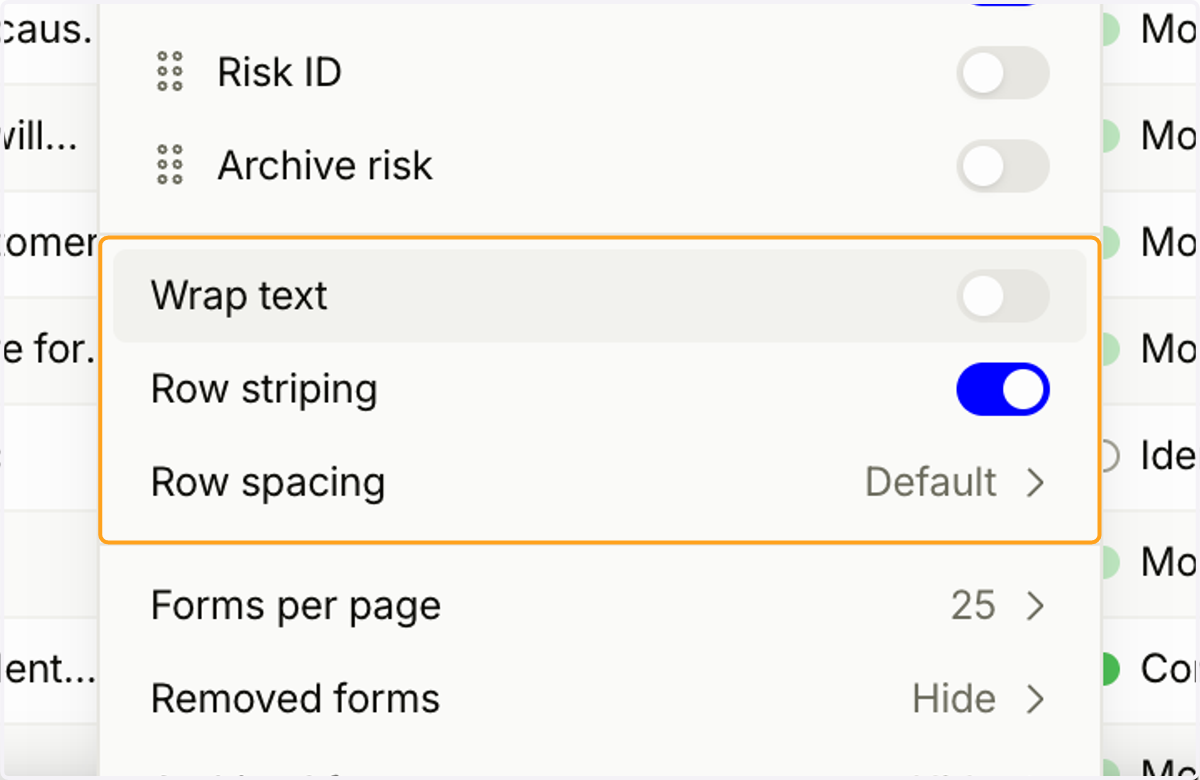
5. In addition to selecting visible columns, you can customize the form list by adjusting text wrapping, alternating row striping and spacing.
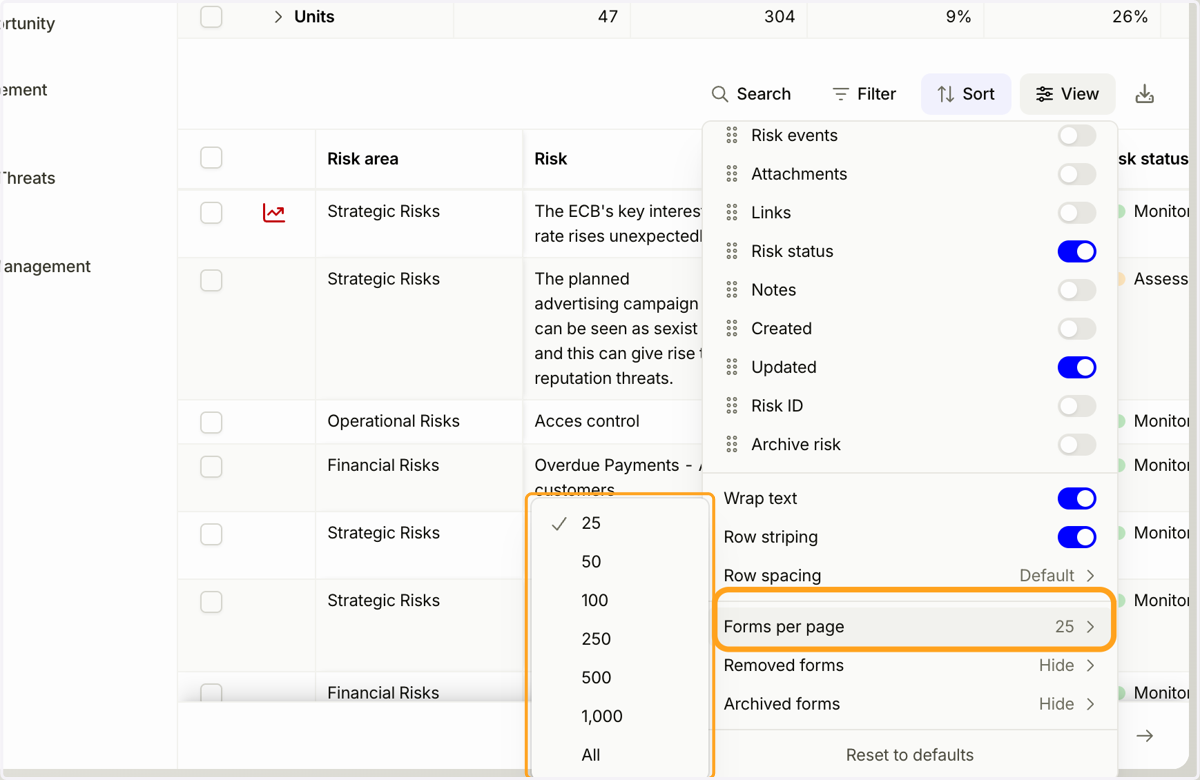
6. Use the "Forms per Page" option to choose how many rows are displayed at a time.
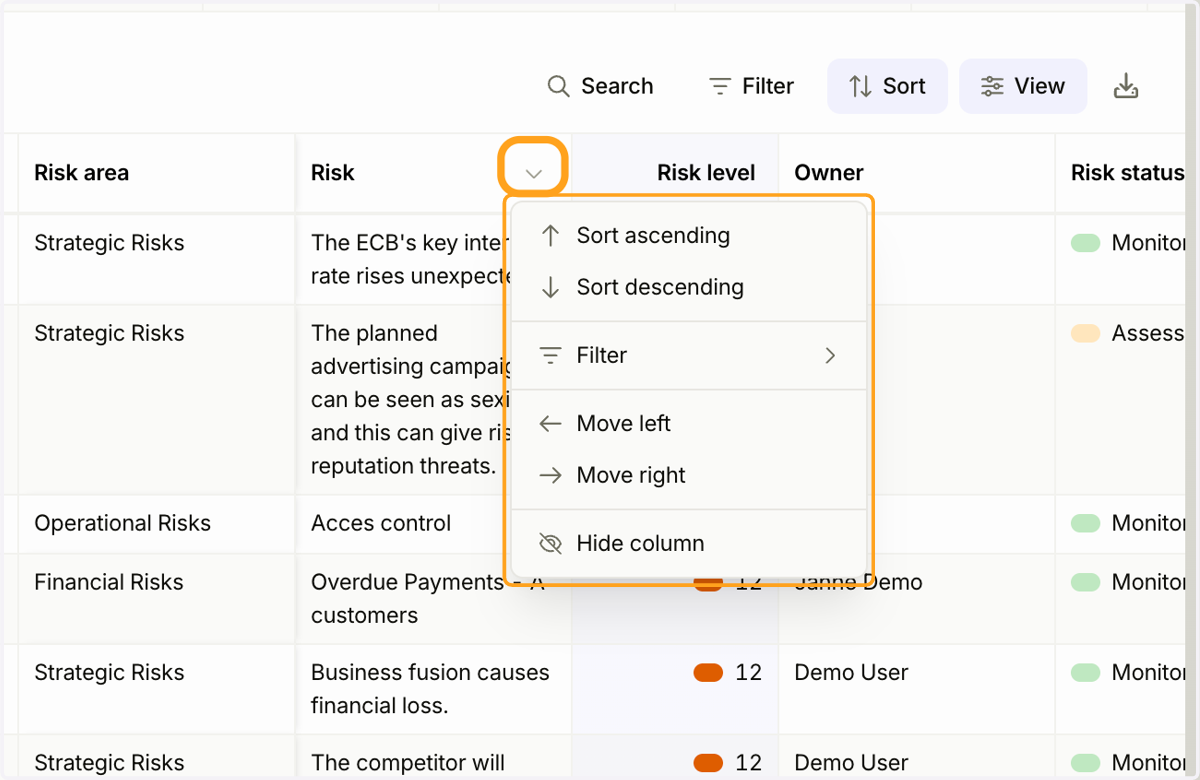
7. Click the arrow next to a column header to access options for filtering, sorting, and moving the column.
Updated on: 21/10/2026
Thank you!