
Navigating the Tool View
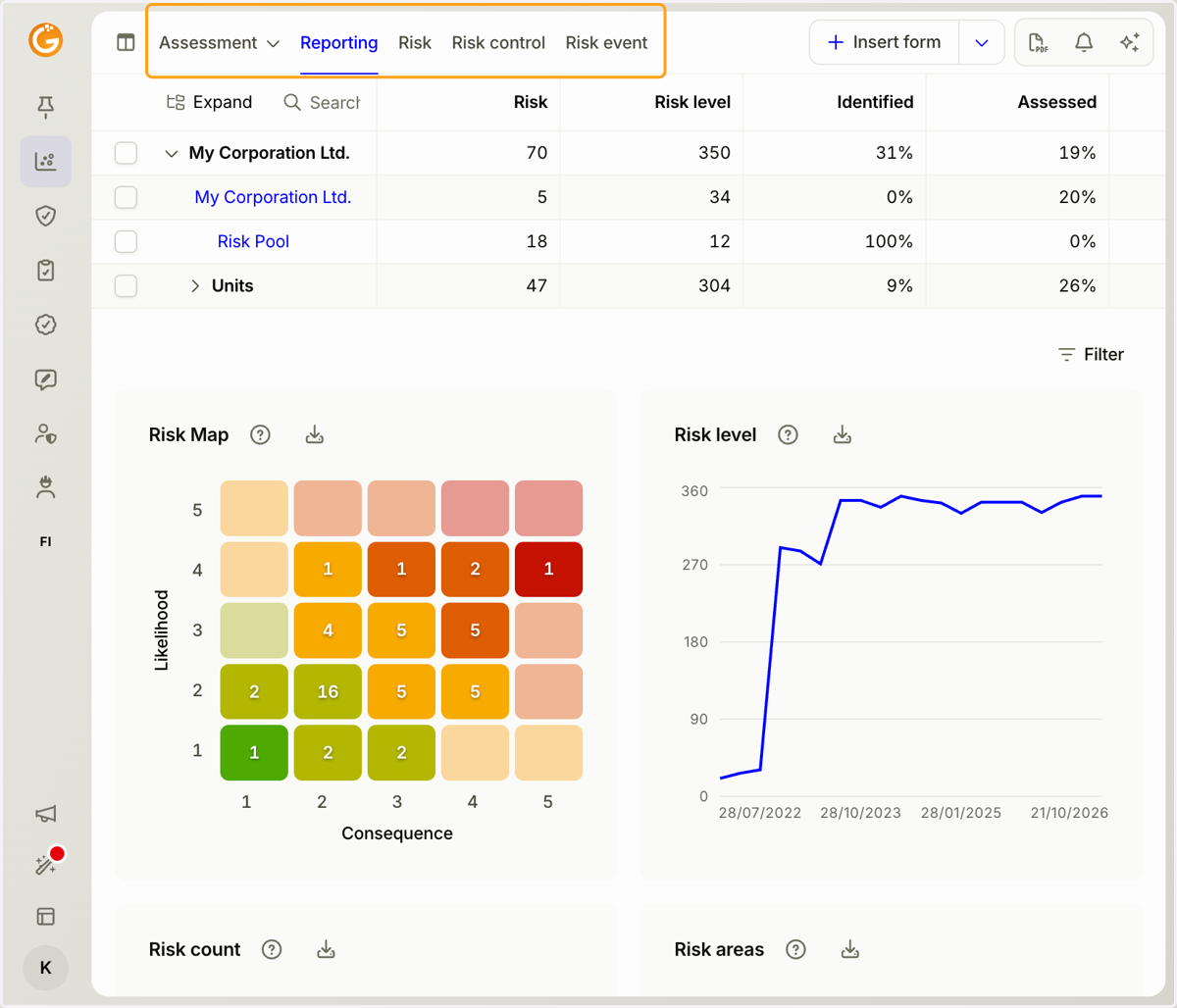
1. Use the tabs at the top to navigate between the different views.
The tool has three main views: Assessment, Reporting, and Form List for each form.
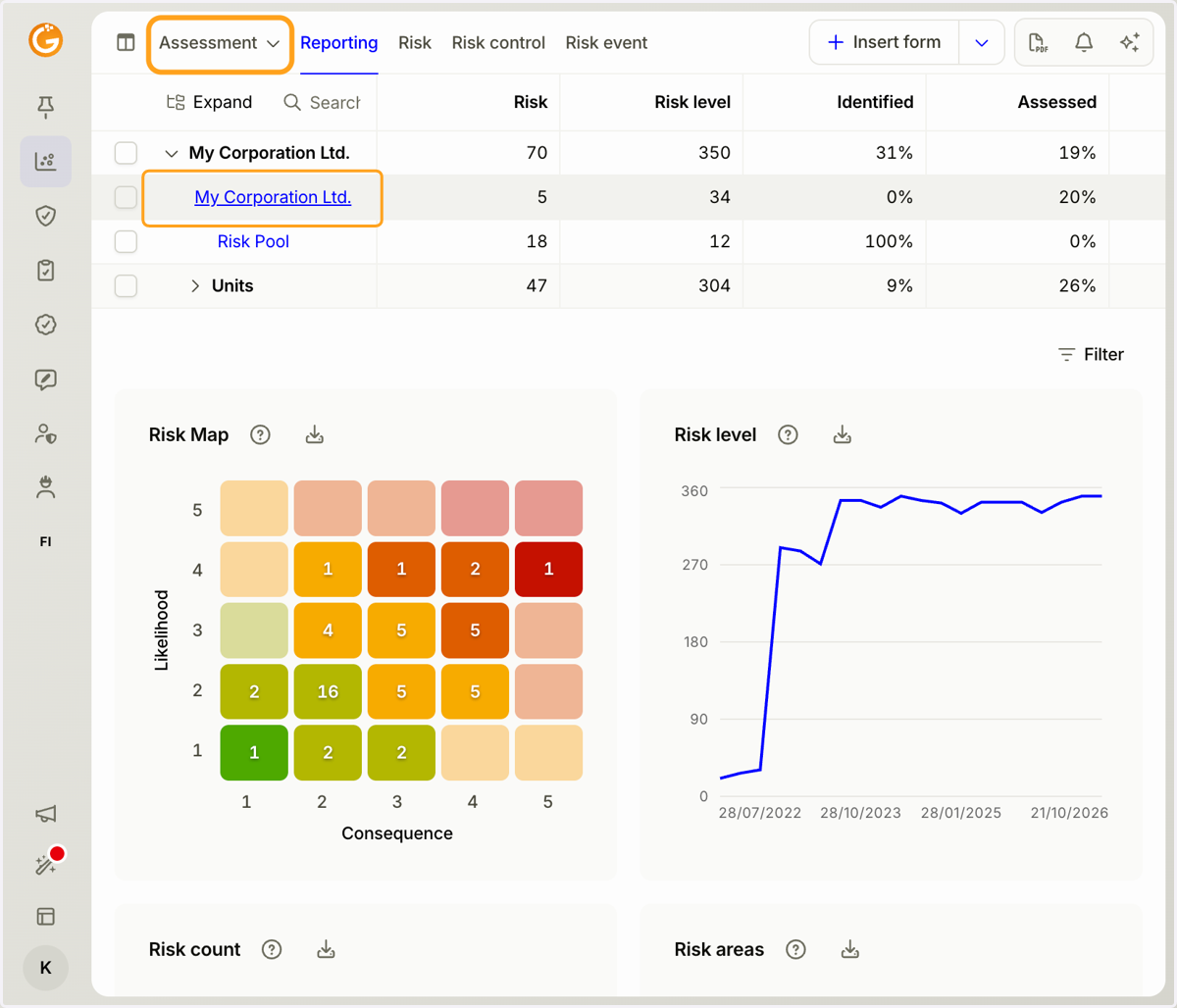
2. To navigate to the Assessment view, select an item from the organizational tree.
You can also select an item from the menu under the "Assessment" tab.
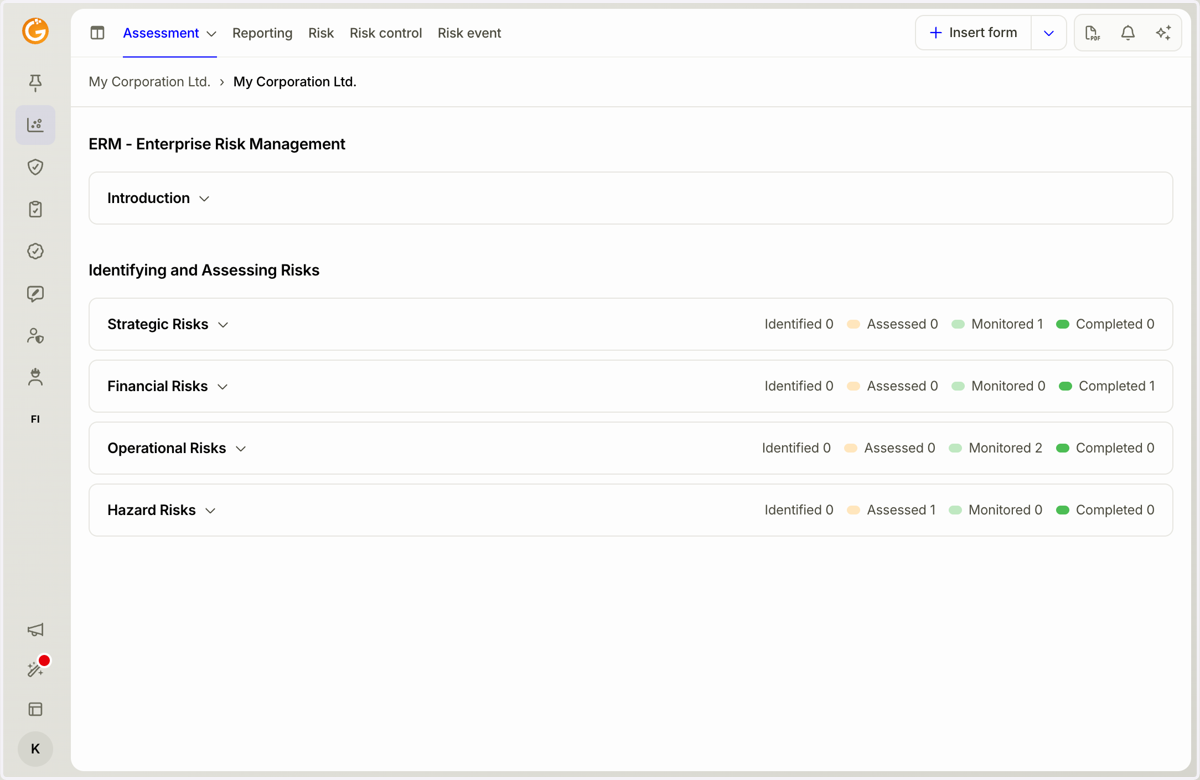
3. The Assessment view is primarily designed for conducting the initial assessment.
It includes tool-specific instructions and a structured layout that makes it easier to collect and record information.
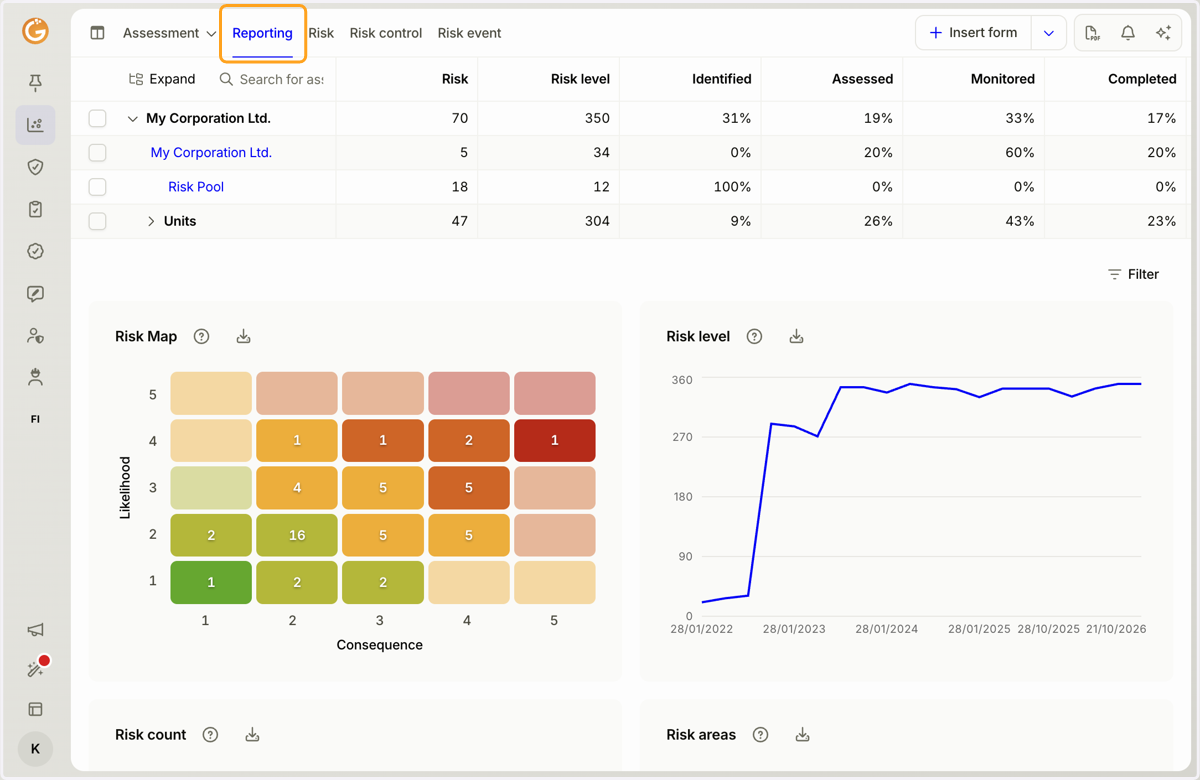
4. The Reporting tab opens by default when you enter a tool.
It provides an overview of your organization's current status through tables and charts.
5. Tool-specific forms are available as tabs at the top.
Each tab displays a list of records entered using that form.
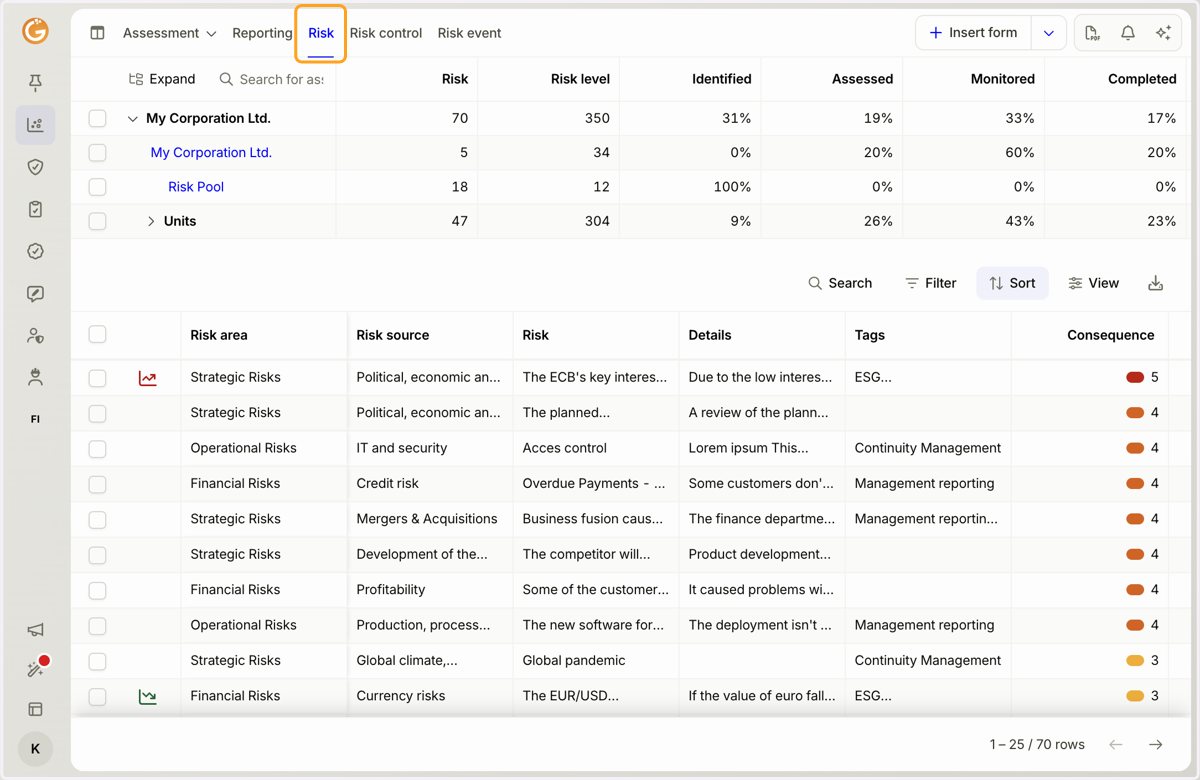
6. Click the "Insert Form" button at the top to add a new form.
The button is available in every tool view, making it easy to add new information at any time.
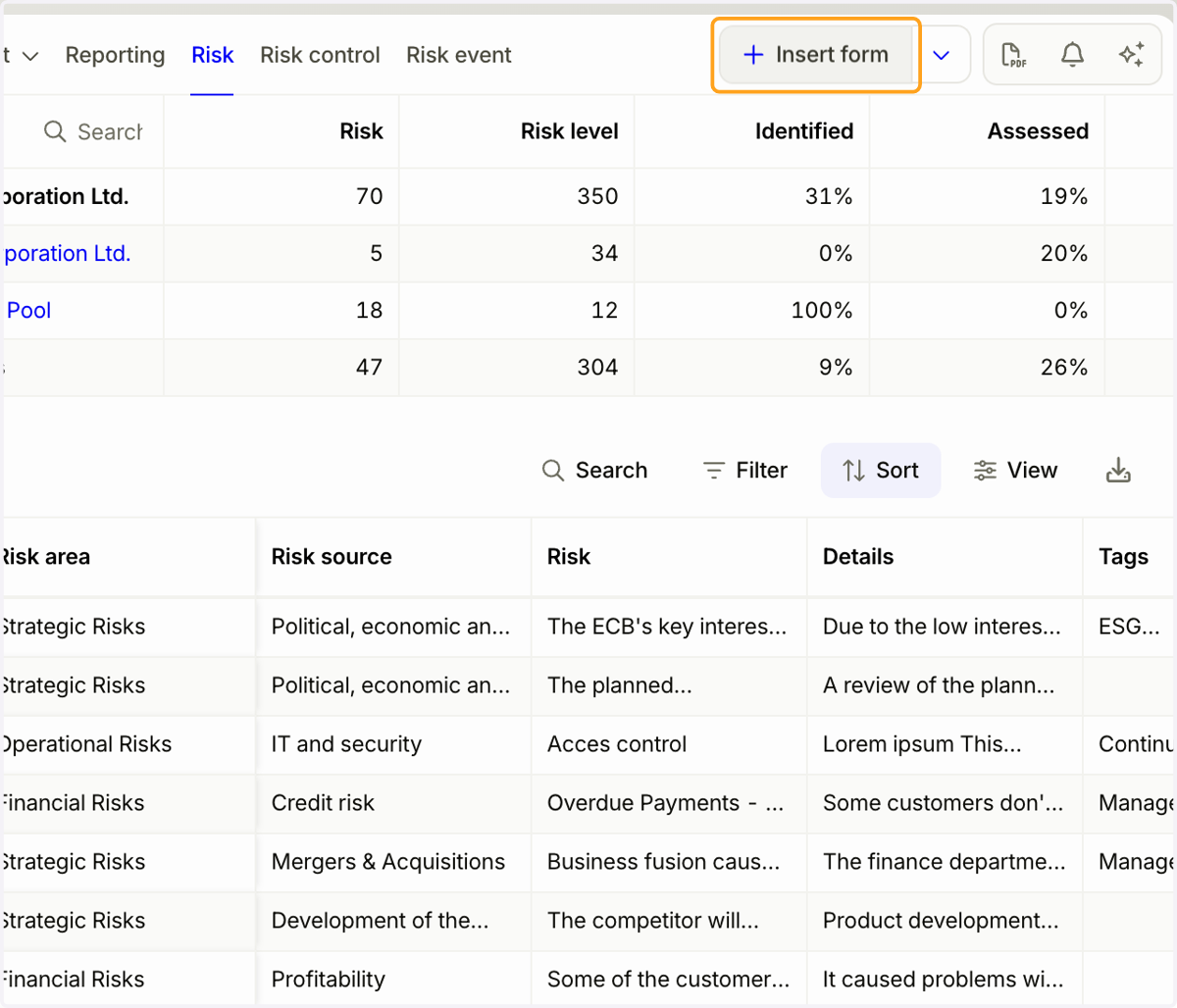
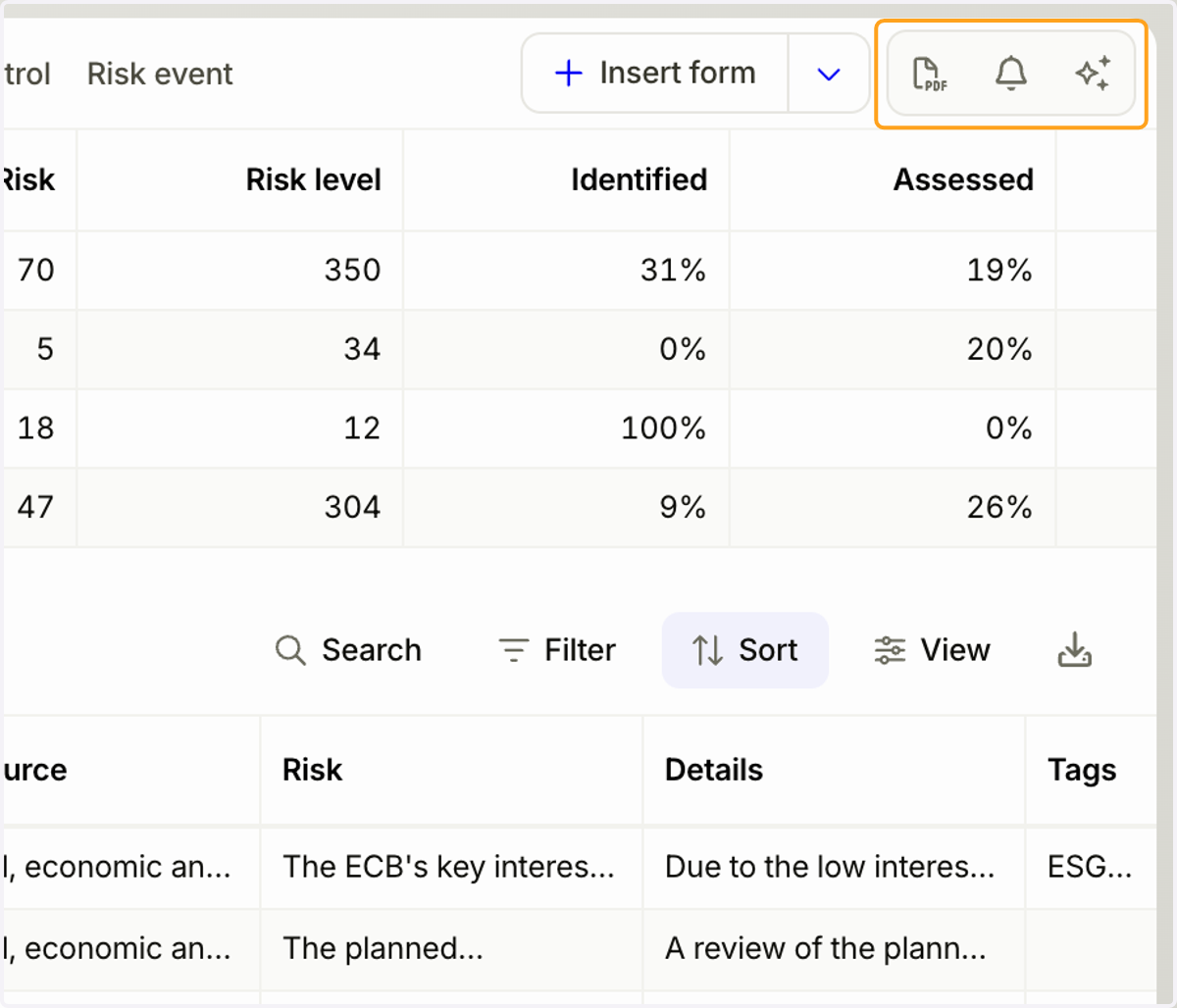
7. Use the menu in the top-right corner to open PDF printing, Tasks, or Granite AI in the right-hand panel.
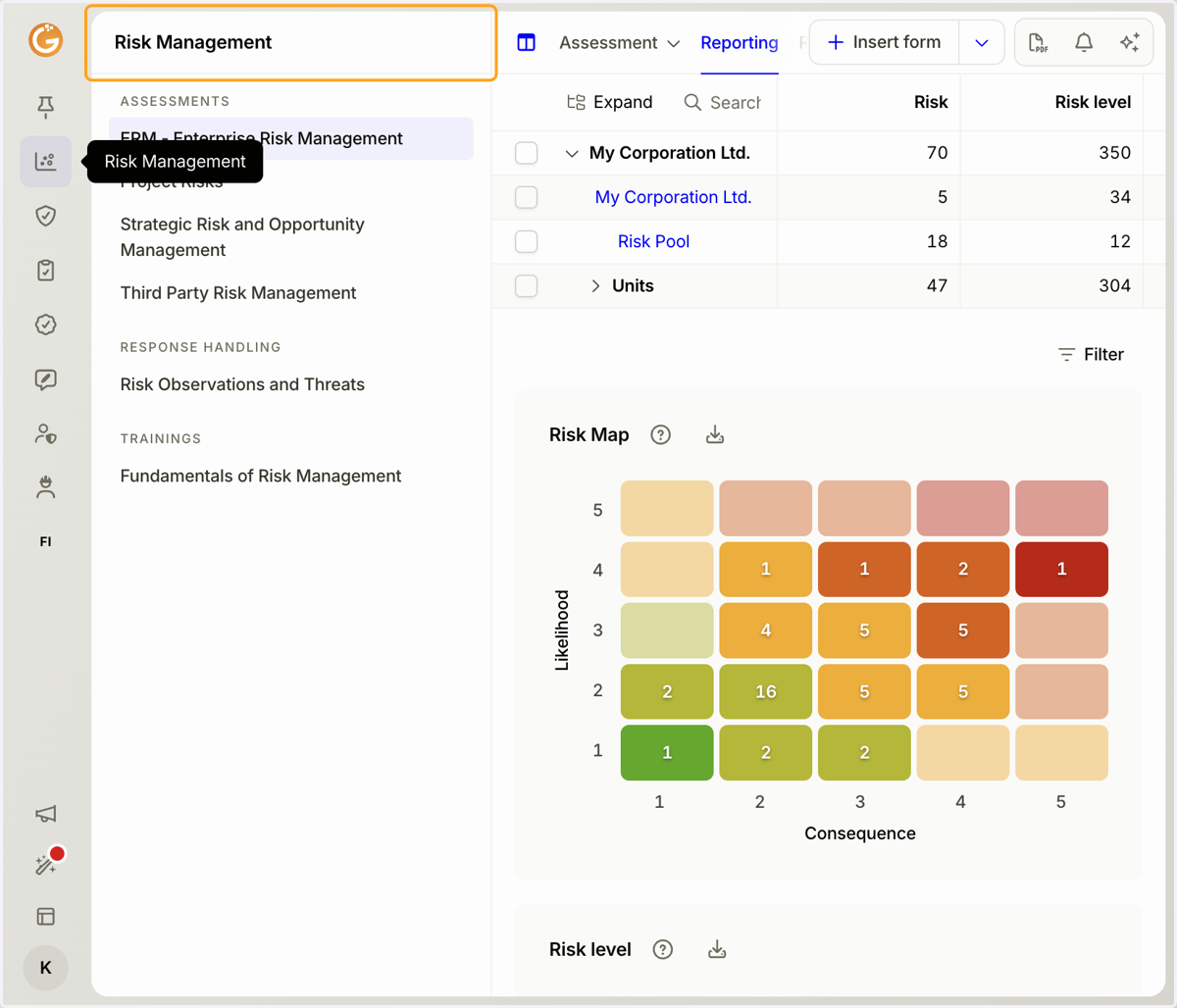
8. The left sidebar displays the category of the currently selected tool and other tools within the same category.
Click a tool name to switch to another tool.
Updated on: 21/10/2026
Thank you!