
Navigating the Home Page
1. At the top of the home page, you'll find a button for creating new reports.
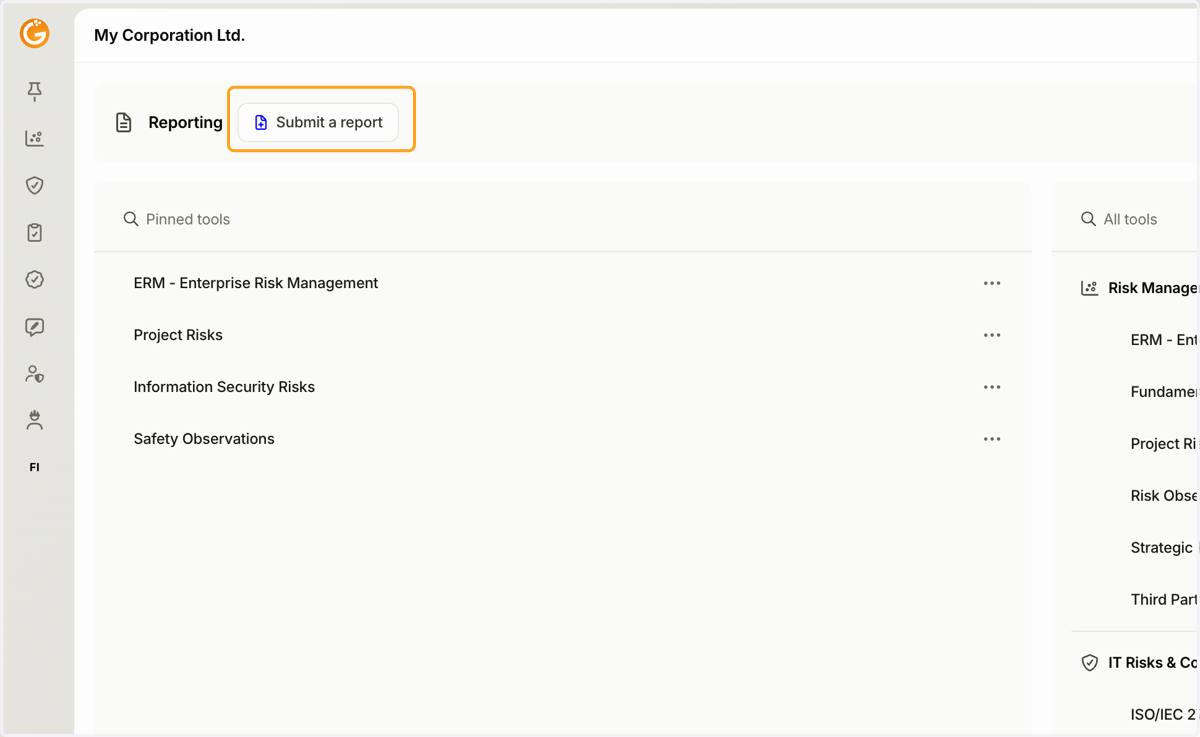
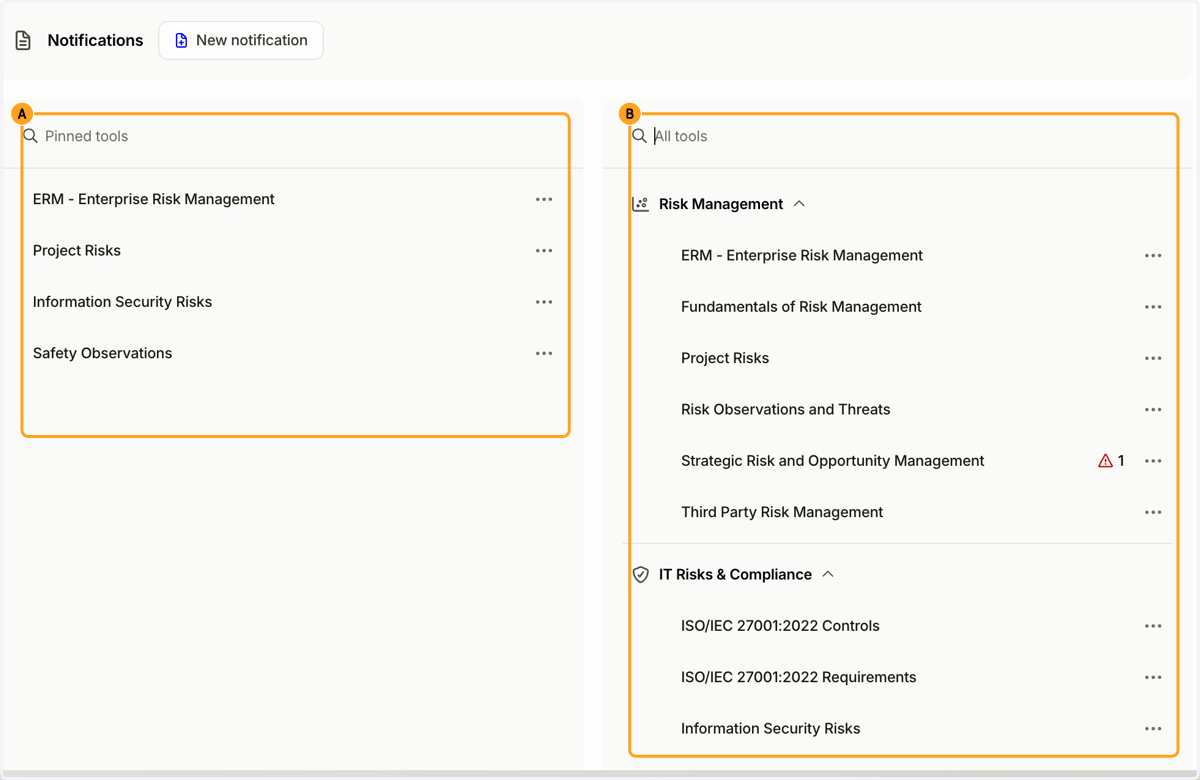
2. A. Your pinned tools are displayed in the left column.
B. All tools available to you are displayed in the right column.
You can pin a tool using the three-dot menu (...) on its toolbar.
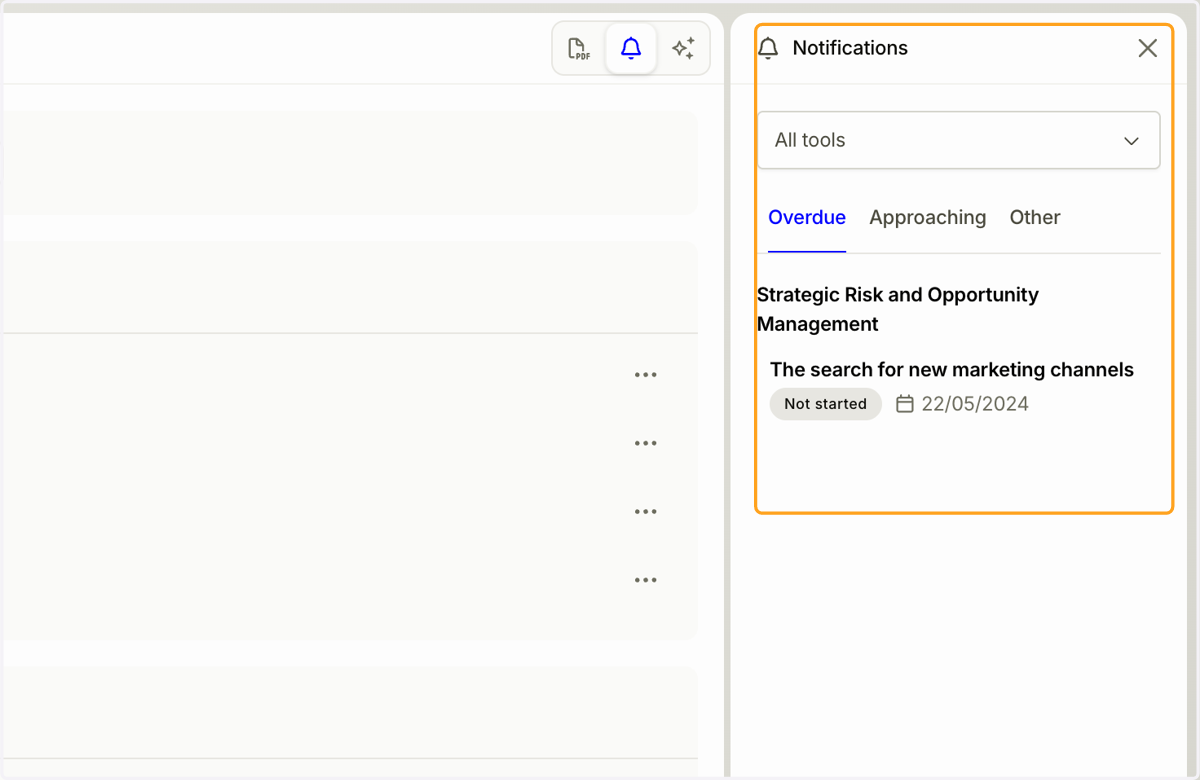
3. Click the Notifications icon in the top-right corner to open the notifications panel.
The panel shows all tasks assigned to you. You can filter tasks by tool. Overdue and upcoming tasks are also displayed on the tool cards.
4. A. You can return to the home page at any time by clicking the Granite logo in the top-left corner.
B. The left sidebar displays tool category icons, allowing you to quickly navigate between tools.
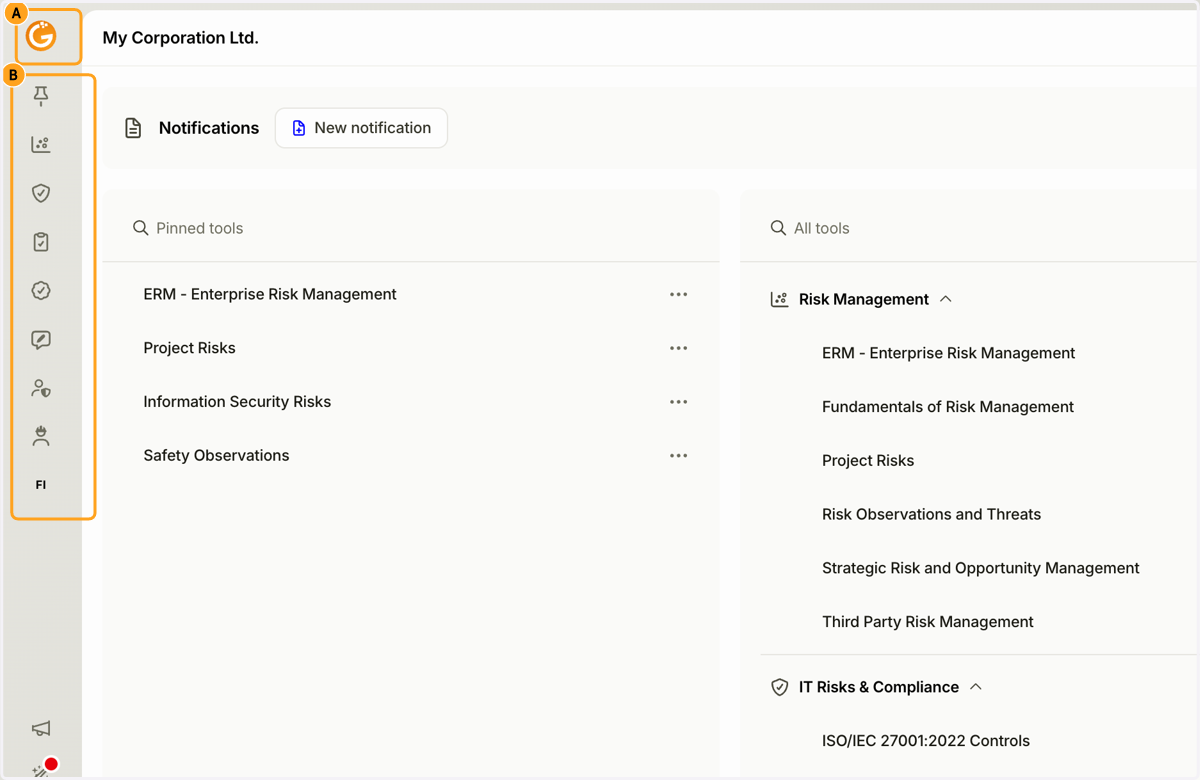
5. At the bottom of the left sidebar, you'll find "Announcements", "What's New in Granite", and "Return to Old Interface" functions.
Announcements: Administrators can publish announcements targeted at specific users.
What's New in Granite: View the latest features and improvements included in the current Granite release. The icon is highlighted in red when a new version has been released.
Return to the old Interface: Switch back to Granite's old interface.
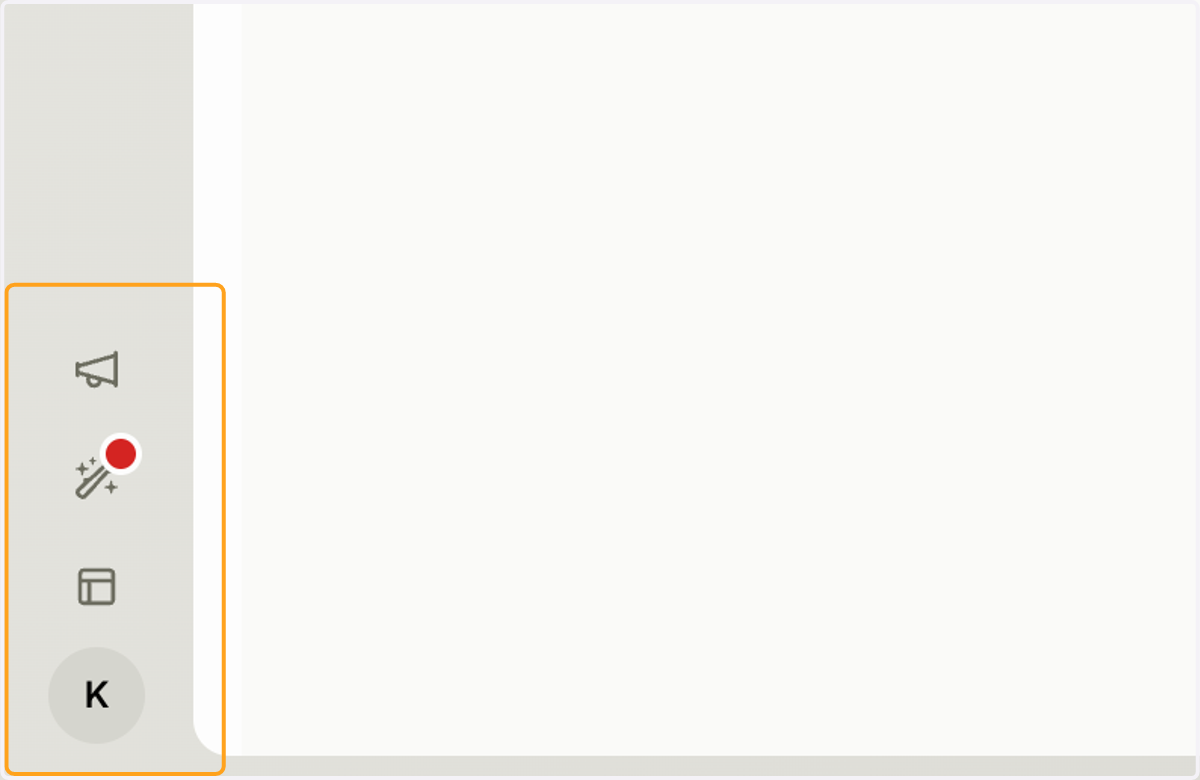
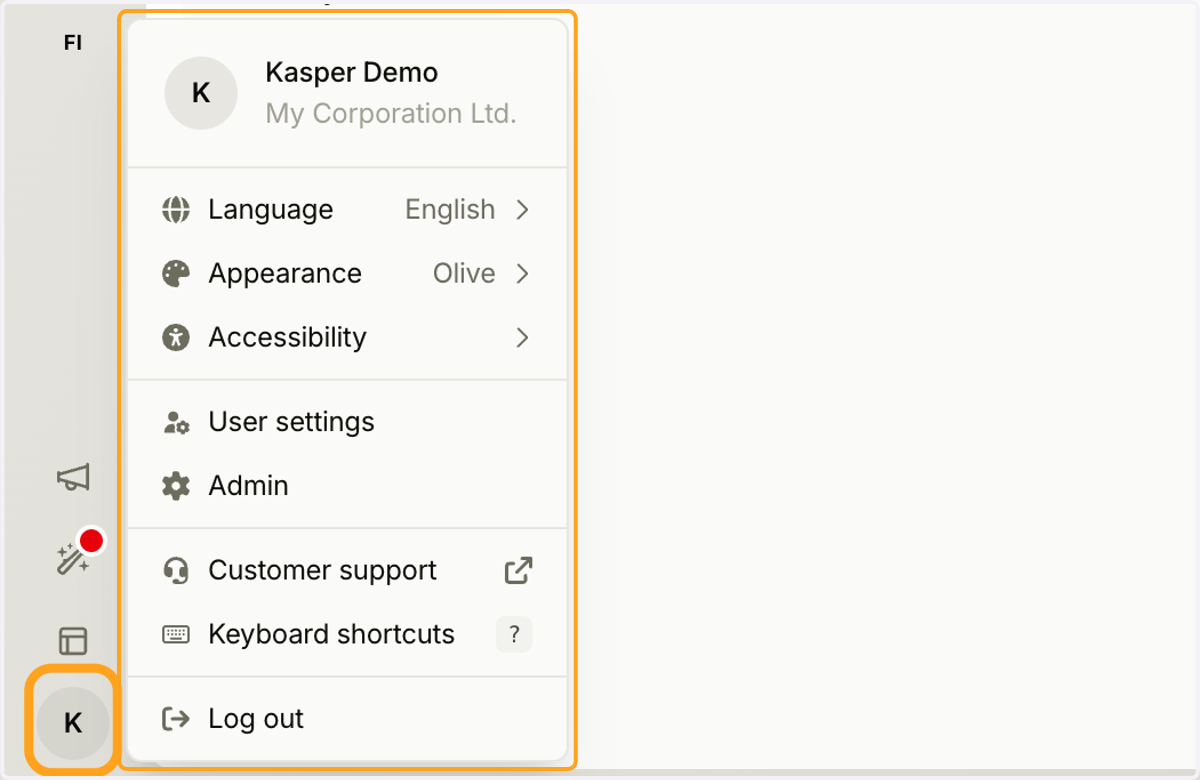
6. Click the user icon in the bottom-left corner to open a menu where you can change the platform language, manage your user settings, and access the administration view.
Updated on: 22/10/2026
Thank you!