
Importing Forms from Excel
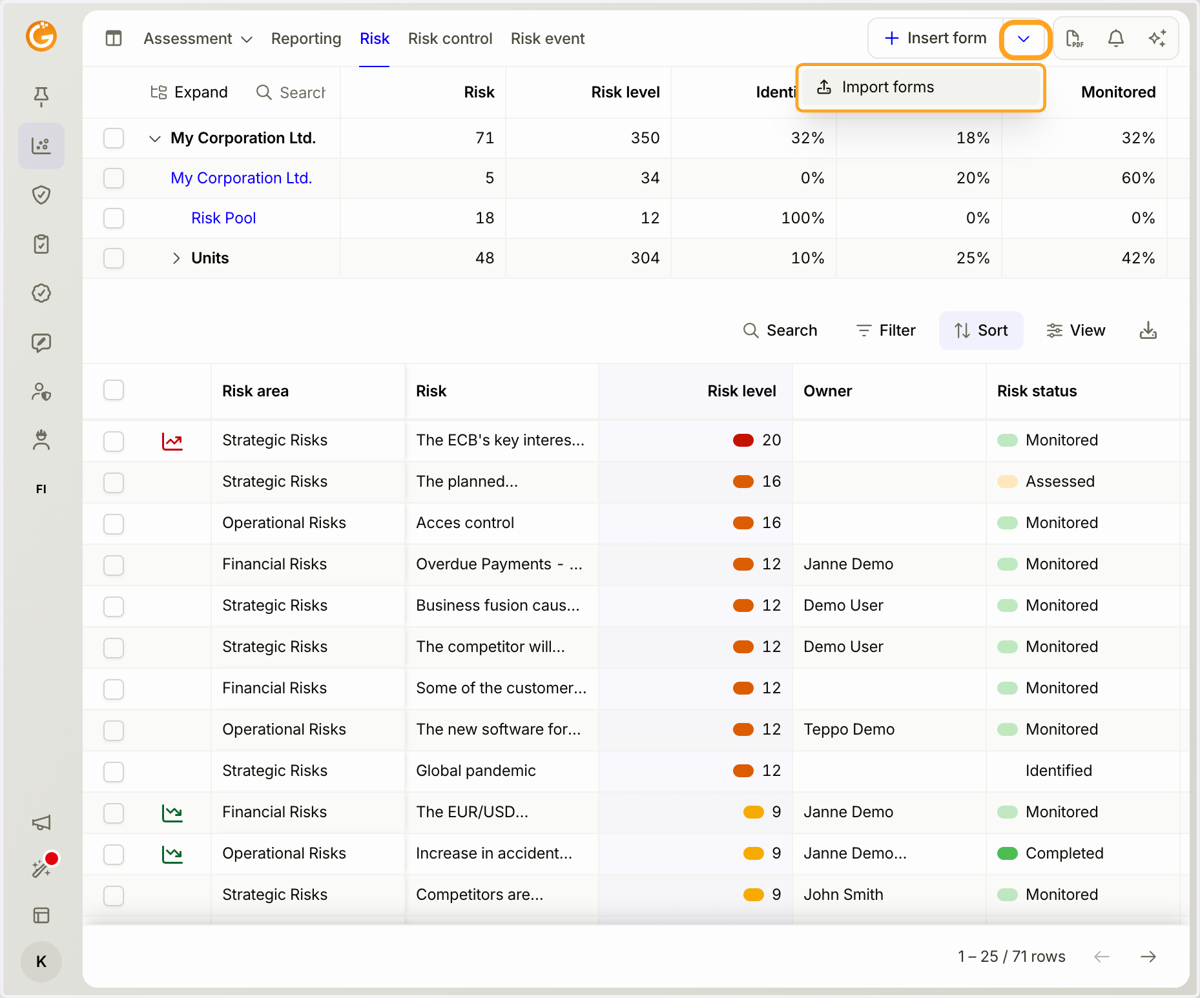
1. Click the downward arrow and select "Import Forms".
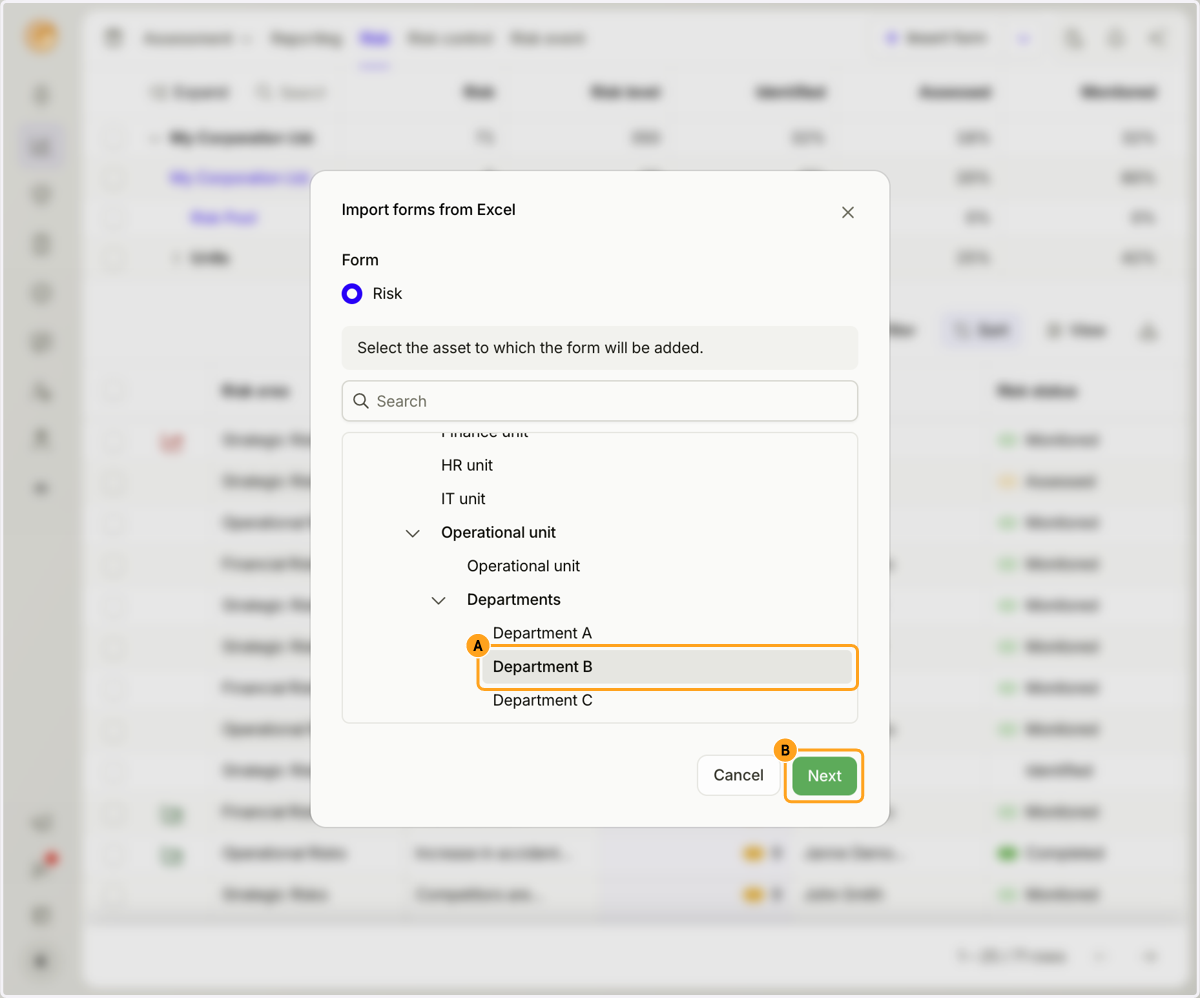
2. A. Select the item where you want to import the forms.
B. Click the "Next" button.
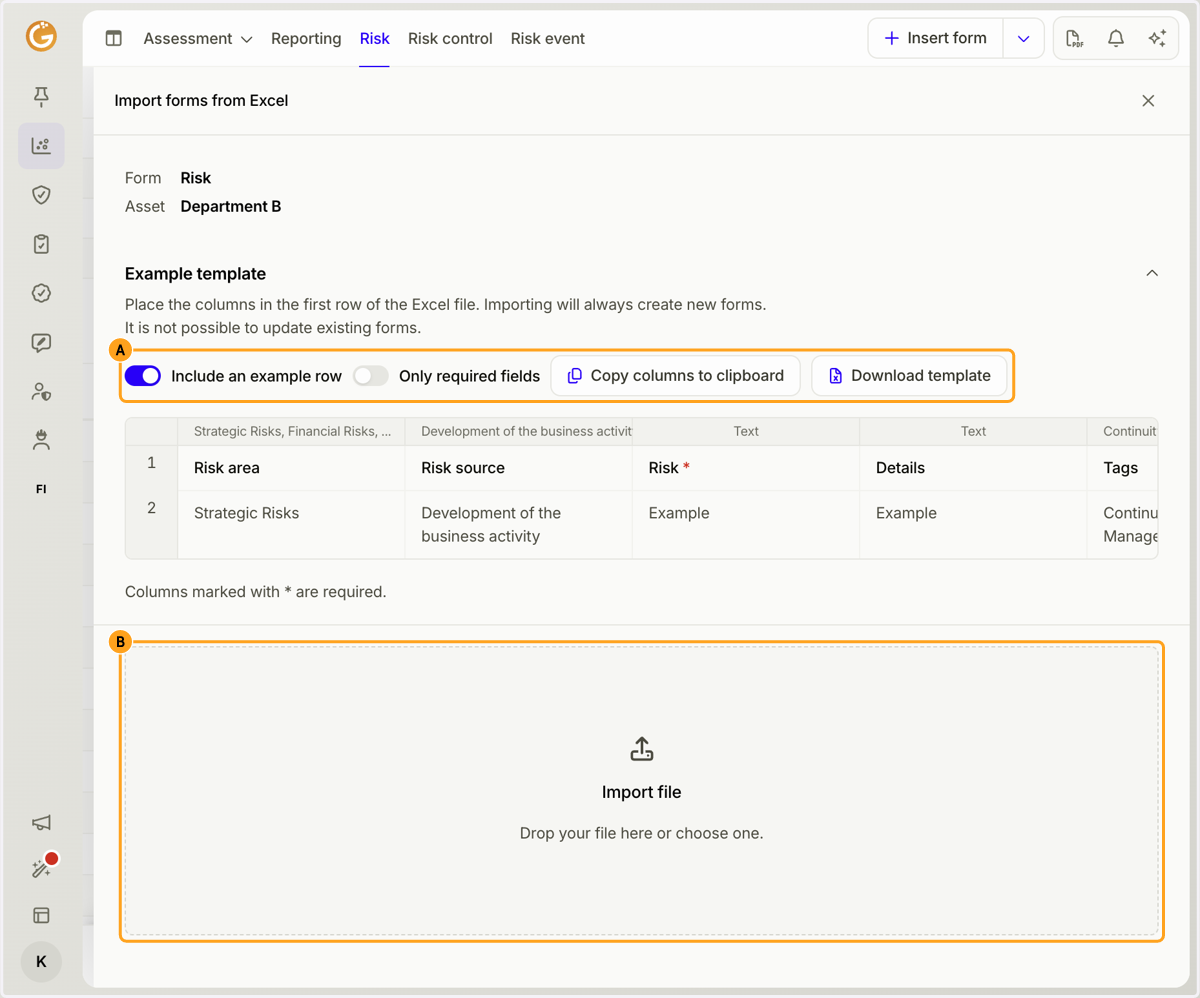
3. A. When importing forms from Excel, the column headers must match the field names in Granite. You can copy the required column headers to your clipboard or download a ready-made Excel template and fill it with the data you want to import.
B. Drag and drop your Excel file onto the "Import File" icon, or click the icon to browse and select a file.
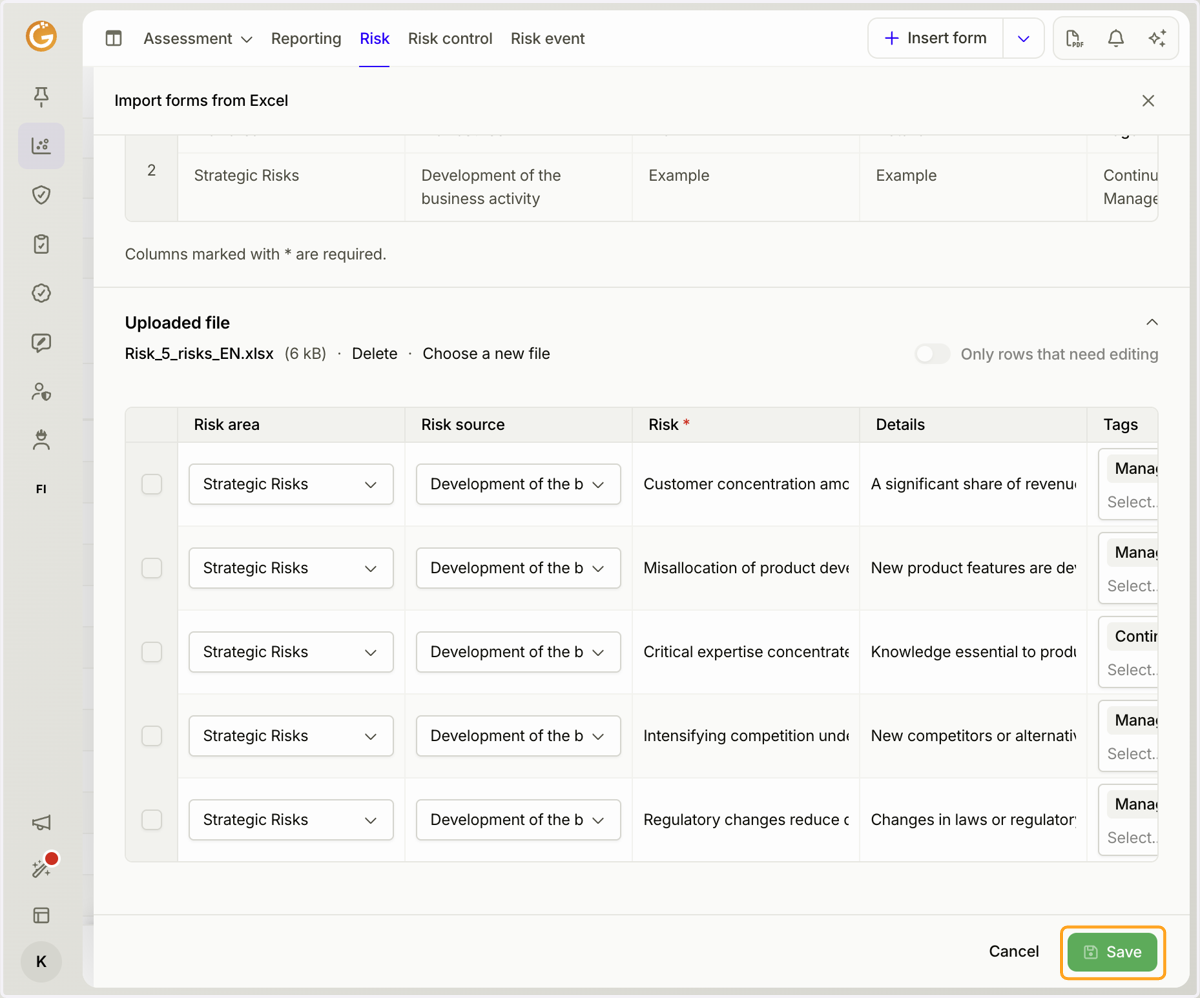
4. After selecting the file, you can still edit the rows and columns directly in Granite.
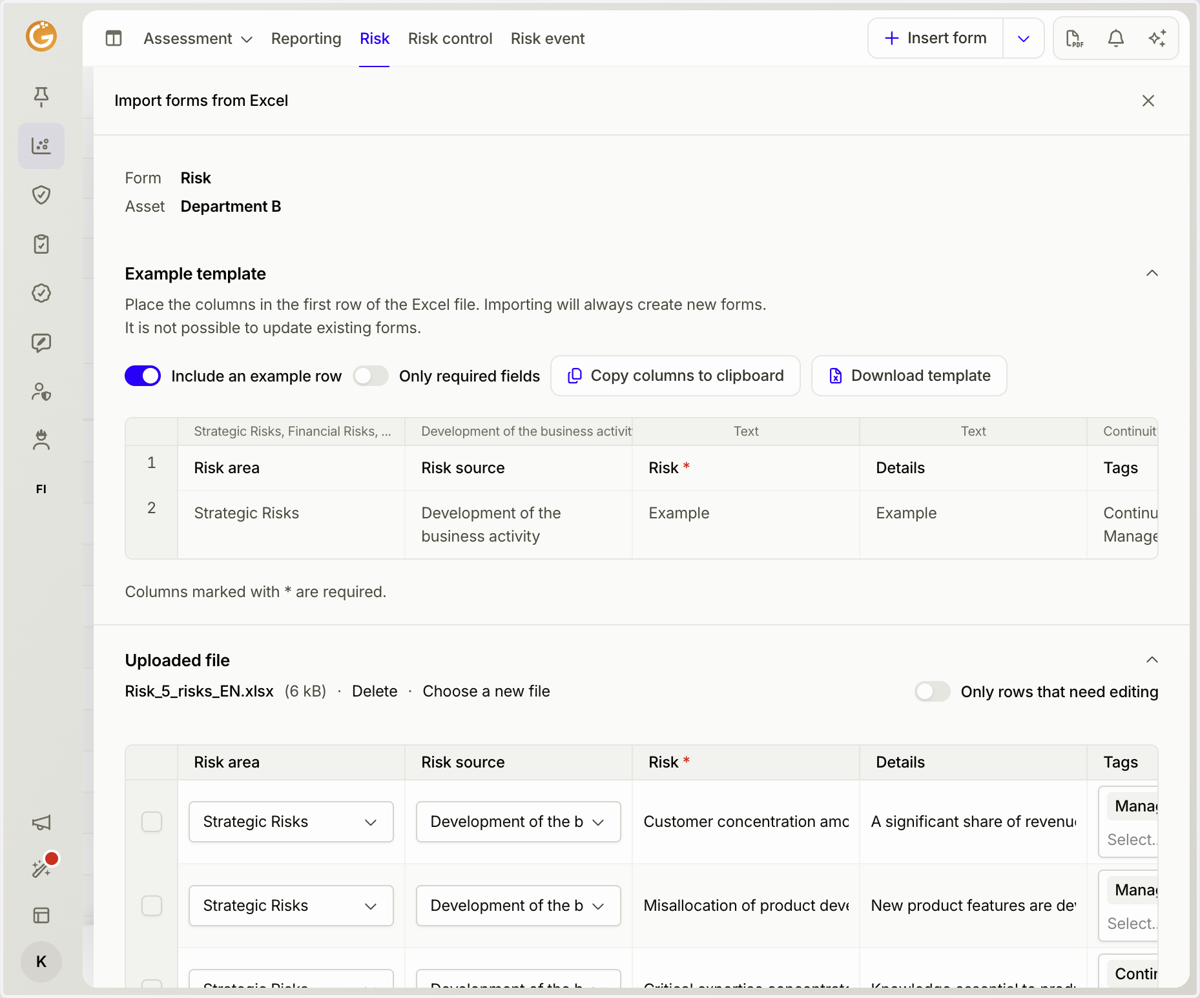
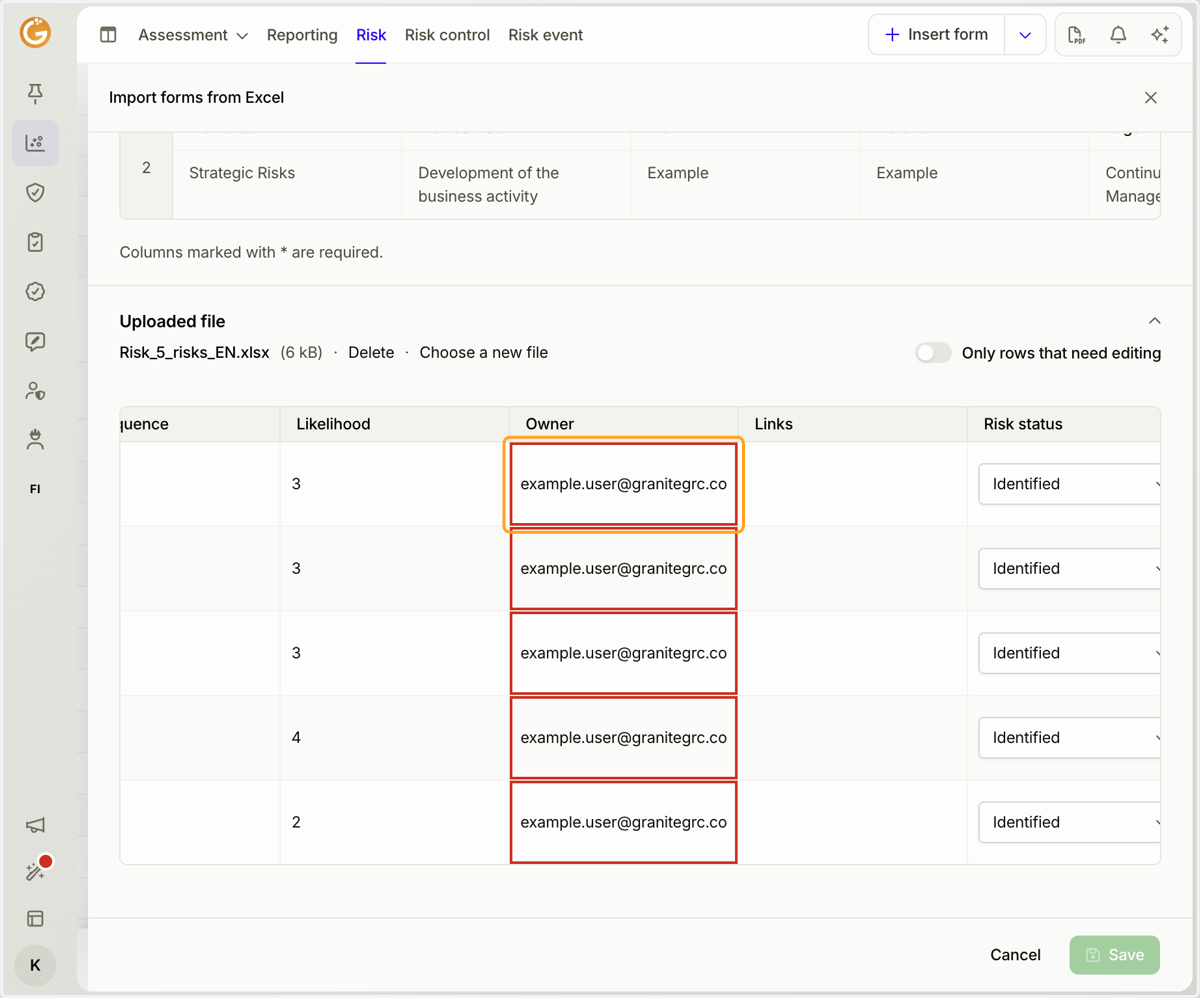
5. The imported values must meet Granite's field validation requirements. If any values are invalid, Granite will highlight the affected cells.
6. Finally, click the "Save" button to complete the import.
Updated on: 23/10/2026
Thank you!